Connect your Booking Spot workspace, add the native calendar to a Wix page, customize it and publish.
Booking Spot manages your services, availability and appointments. Wix places the calendar on your website and manages your app subscription. You use the same Booking Spot dashboard as a standalone business. You don’t need Wix Bookings, and Booking Spot does not sync with its calendar.
1
Add Booking Spot to your Wix site
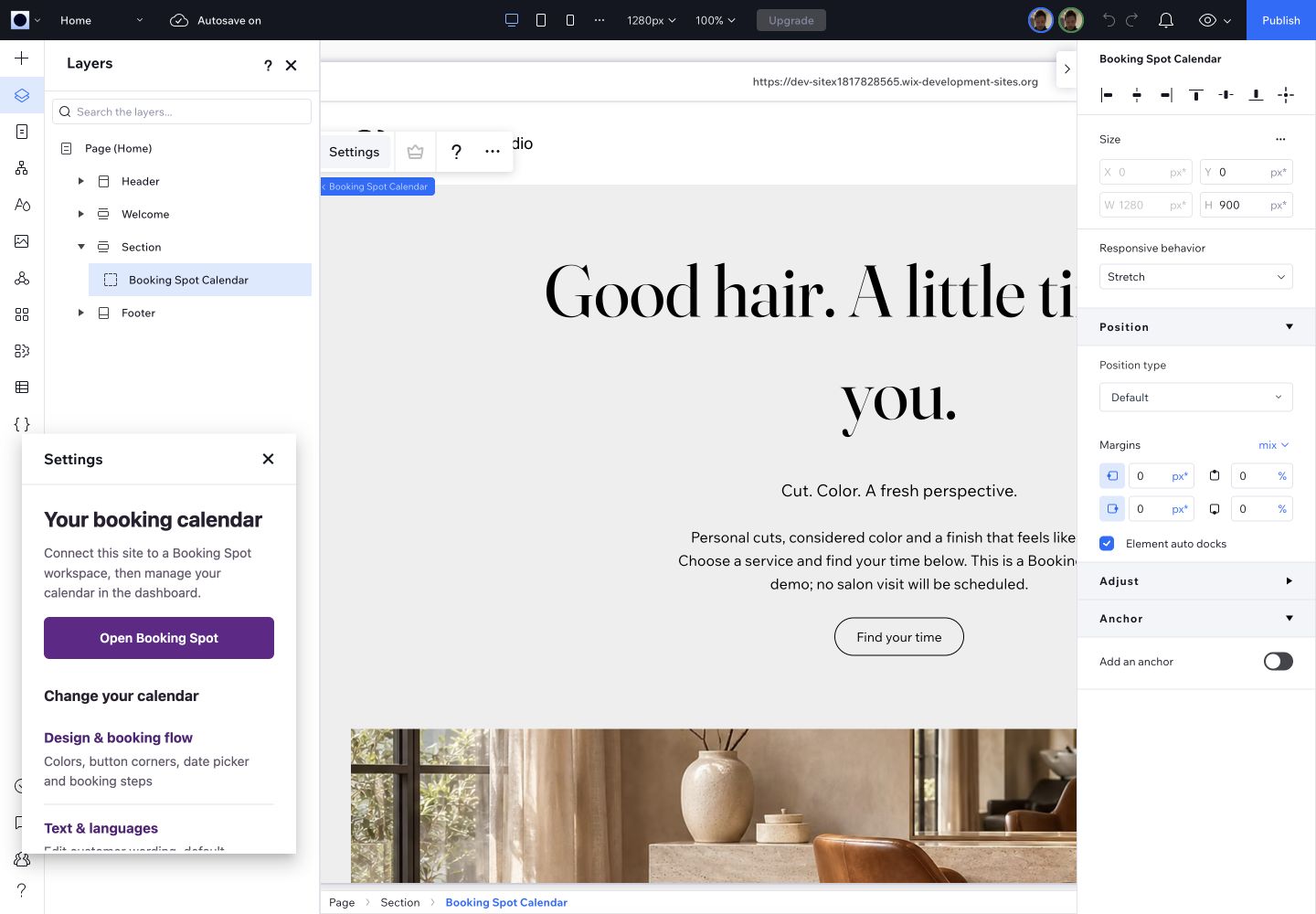
Install Booking Spot for the site you want to use, then open Booking Spot from the site’s apps. In the editor, select Booking Spot Calendar → Settings → Open Booking Spot. The calendar may be added to your homepage automatically. You can move it to the page where customers should book.
2
Sign in to Booking Spot
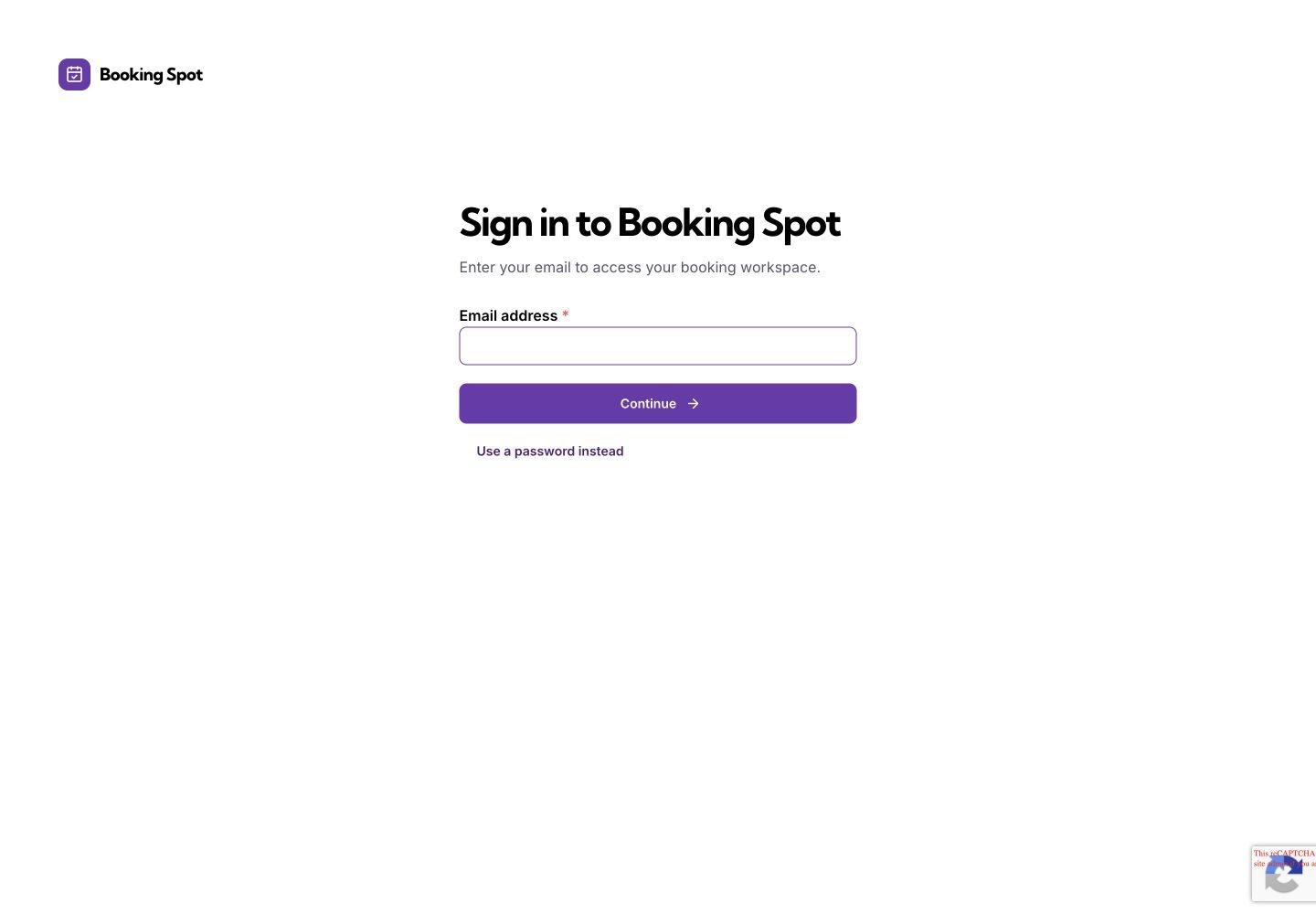
Use your Booking Spot account. Wix does not sign you in to Booking Spot automatically. You can use the email PIN or password sign-in options available on the normal sign-in screen.
Wix opens the normal Booking Spot sign-in flow.
3
Confirm your workspace
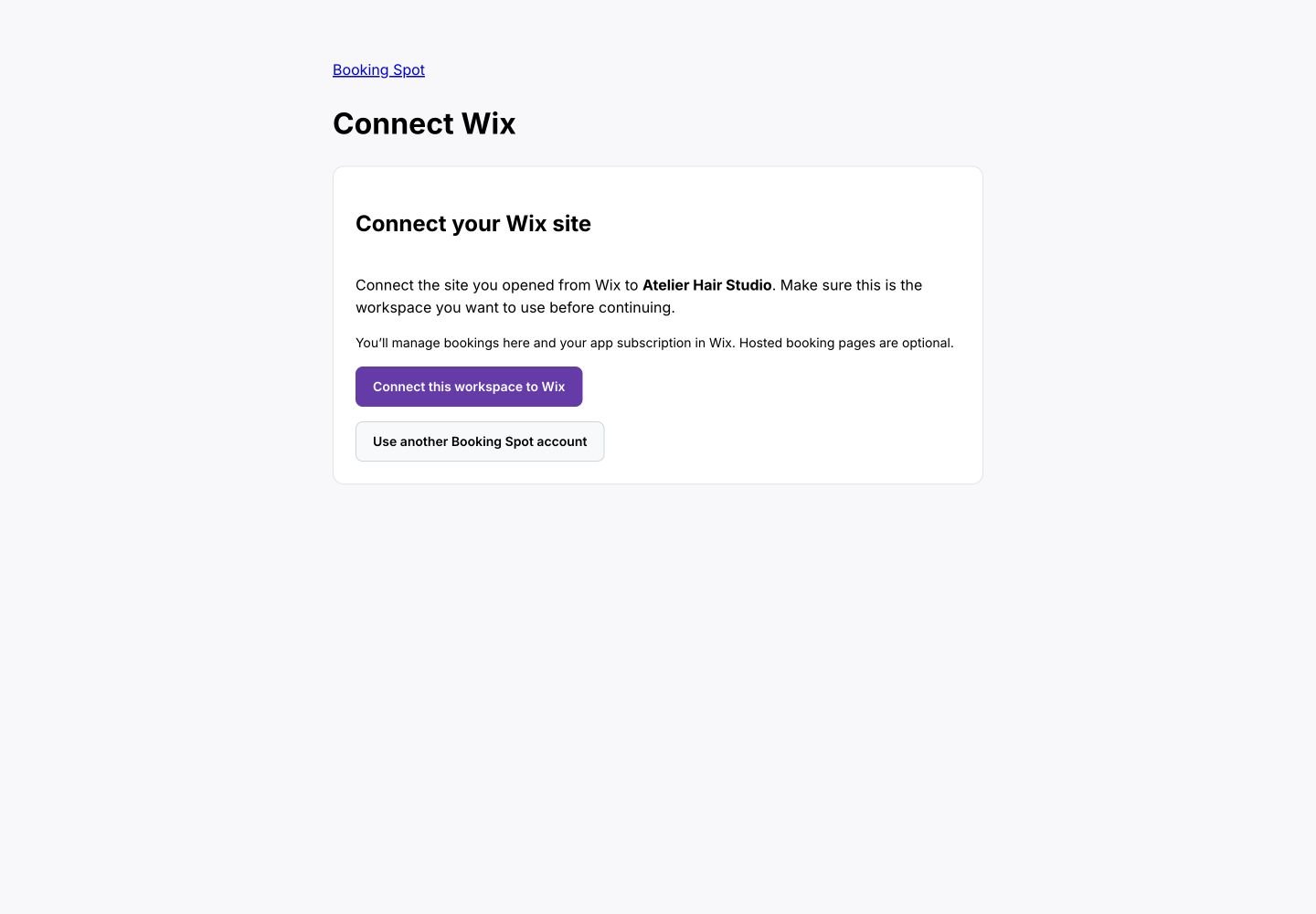
Check the workspace name, then select Connect this workspace to Wix. To keep an existing business separate, select Create a separate workspace for this Wix site before connecting. Your existing business and subscription stay with that business. Each Wix site has its own calendar workspace and app subscription. Open Booking Spot from Wix again if the connection link expires.If Wix identifies an already connected or copied site, Booking Spot opens that site’s workspace after you confirm the connection. Use Wix sites in the dashboard’s plan summary to switch between Wix workspaces you own. A Shopify workspace cannot be attached to Wix.
Confirm the workspace before attaching your site and its Wix billing authority.
4
Prepare your services and working hours
In Booking Spot, set up your services, professionals and availability. Turn on Accept appointments. Free supports one active service; Starter and Pro support unlimited active services.
5
Place and customize the calendar
Return to the Wix editor. Select the calendar and open Settings. For an individual calendar, turn on Customize this calendar, choose its accent color, button corners, date picker or title, then select Save this calendar. Publish the Wix page to apply these changes to the live site. Leave customization off to inherit the workspace defaults.The panel also links to Design & booking flow, Text & languages, Team & availability, and Services in Booking Spot. Confirm the workspace if prompted.
Use Wix to position the calendar. Use the settings links to customize its content in Booking Spot.
Resize the element for the whole flow and check the phone breakpoint. Use Widget → Appearance in Booking Spot for shared colors, corners and date layout. Use Save design to apply your workspace changes. Individual Wix calendar overrides take precedence. See the Wix calendar settings guide.
6
Preview, publish and test a booking
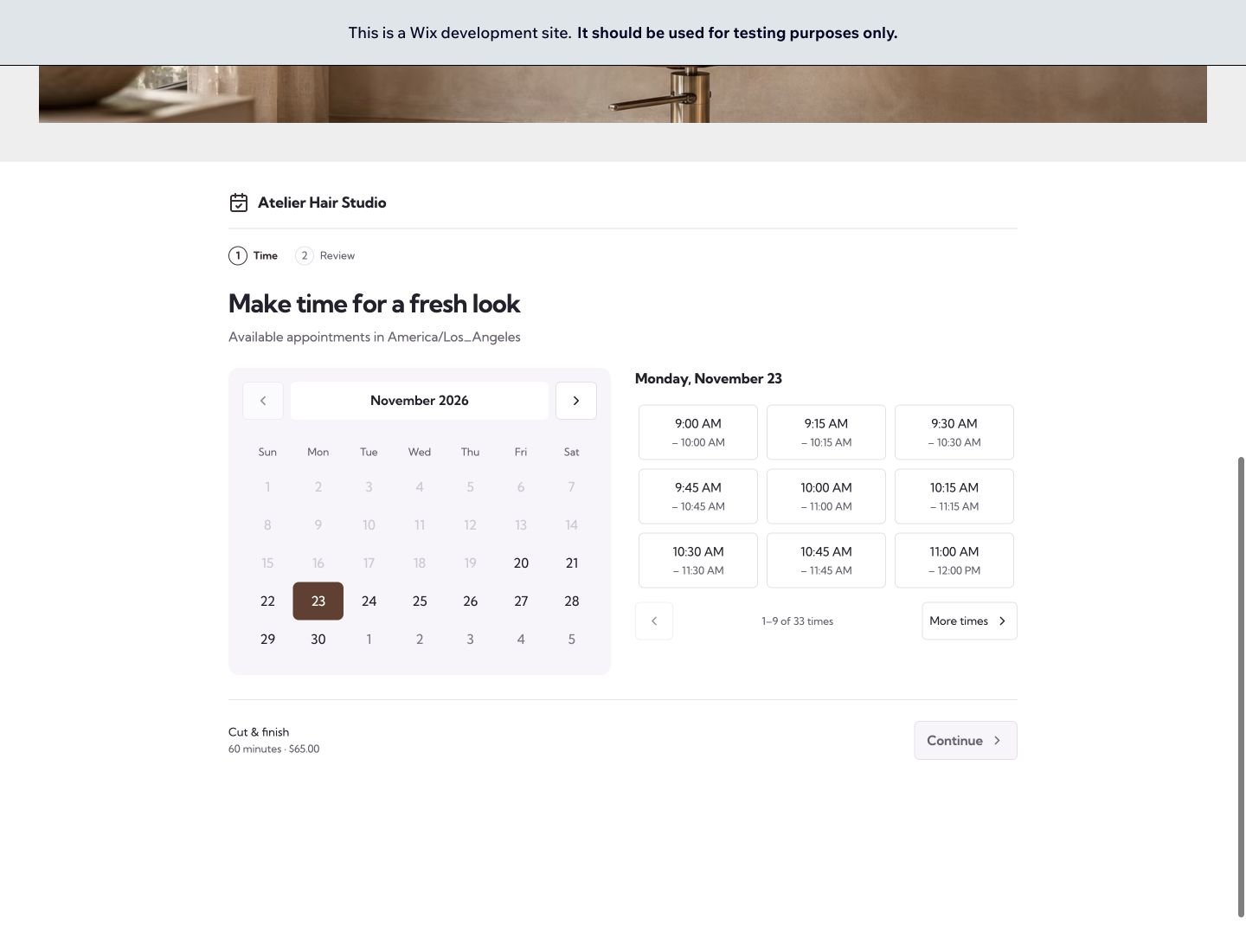
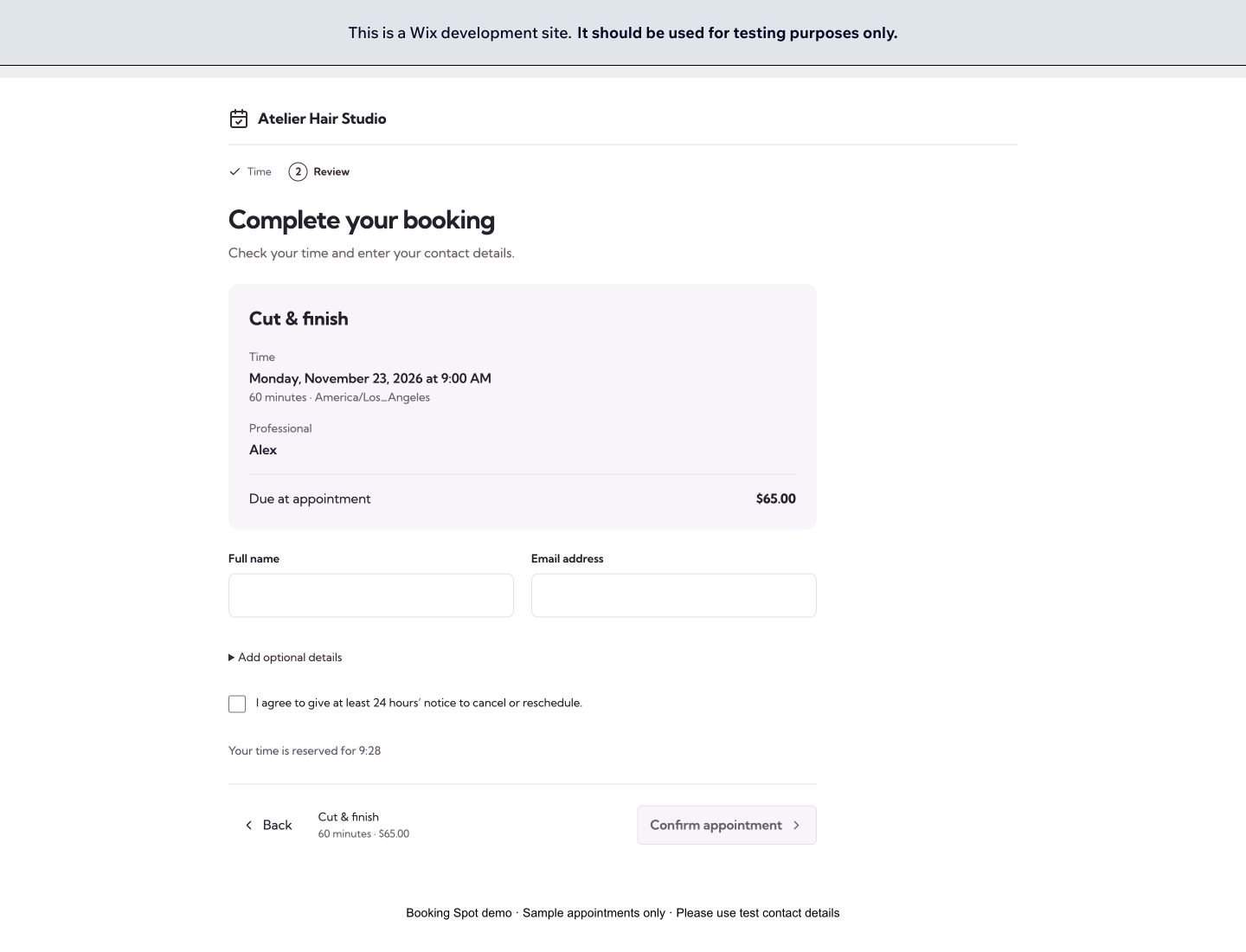
Publish your Wix page, then visit its published URL. Choose a future date and an available time. Continue to Complete your booking and check the service, professional, price and time zone. Use test customer details for a test booking.
The native Wix element displays the existing Booking Spot calendar.
The customer reviews the time and enters contact details inside the Wix page.
Hosted booking pages are optional
You can leave Hosted pages disabled and use only the Wix calendar. Enabling a Booking Spot booking page gives you another link to share; it uses the same services, availability and saved widget design.
Duplicating a Wix site
A duplicated site starts with its own Booking Spot workspace. It inherits service definitions, recurring staff hours and calendar design from the original site. It does not copy appointments, customer records, account ownership, payment connections, calendar credentials, time off or your original site’s paid subscription. Paid services start as pay-at-appointment until you connect a payment provider. Outbound notifications and hosted booking pages start disabled.Open Booking Spot from the copied site’s Wix editor and sign in to claim and manage that site. Review its availability, services, notifications and payment settings before accepting real customers. Changes in the copied workspace do not change the original business. Each copied calendar element also keeps its own saved Wix design choices.
Your subscription and customer payments
Open Billing in Booking Spot to compare plans. A Wix-connected workspace opens Wix for subscription upgrades, management and cancellation. Customer appointment payments are separate: use your normal standalone payment options or take payment at the appointment. See billing and customer payments.
If the calendar doesn’t appear
Check that the element is on the published page and visible at the current Wix breakpoint.
Open Settings → Open Booking Spot and confirm the right workspace is connected.
Enable Accept appointments, with an active service and a professional who has working hours.
Publish after adding or moving the element. Refresh the published page after saving a dashboard design change.
If the calendar reports a loading error, try again. Site owners should contact support@bookingspotapp.com if it persists.
The Atelier Hair Studio demo uses a Wix development site and synthetic appointment data. No salon visit is scheduled and demo emails are not sent. Use an example.test email address when testing it.
{"docsConfig":{"theme":"mint","$schema":"https://mintlify.com/docs.json","name":"Booking Spot","description":"Set up appointments, availability, booking pages, payments, and customer emails with Booking Spot.","colors":{"primary":"#7A249F","light":"#C084FC","dark":"#672187"},"favicon":"https://mintcdn.com/booking-spot/2EJbXjxHT-JWnMMf/favicon.svg?fit=max\u0026auto=format\u0026n=2EJbXjxHT-JWnMMf\u0026q=85\u0026s=f19381dc087083cf7b25376607d75d2f","seo":{"indexing":"navigable"},"styling":{"latex":true},"navigation":{"pages":[]}},"deployment":{"deploymentMetadataValue":{"subdomain":"booking-spot","hasAudioNarration":false,"actualSubdomain":"booking-spot","customDomains":["bookingspotapp.com"],"gitSource":{"type":"github","owner":"bookingspotapp","repo":"booking-spot-docs","deployBranch":"main","contentDirectory":"","isPrivate":true,"mountPath":"","label":"","_id":"6aff51d4144212df2259c940"},"entitlements":{"AI_CHAT":{"status":"ENABLED"},"WEB_MCP":{"status":"ENABLED"},"NARRATION":{"status":"ENABLED"}},"buildId":"6b013a7e7f4e51979dfd1c45","clientVersion":"0.0.4270","searchFilterCounts":[{"language":"default","tag":"Guides","count":27},{"language":"default","tag":"Booking pages and calendar","count":7},{"language":"default","tag":"Set up your business","count":7},{"language":"default","tag":"Get started","count":6},{"language":"default","tag":"Help","count":6},{"language":"default","tag":"Customer emails","count":5},{"language":"default","tag":"Your first booking","count":5},{"language":"default","tag":"Run your schedule","count":4},{"language":"default","tag":"Find an answer","count":4},{"language":"default","tag":"Payments and payouts","count":4}]},"assistantConfig":{"enableAskAiButton":false,"enableStarterQuestions":false,"enableContextualStarterQuestions":false,"enableAskAiSearchBar":true},"basePath":"/docs","hasChatPermissions":true,"hasWebMcpPermissions":true,"toggles":[{"name":"kill-isr","enabled":true,"variant":{"name":"disabled","enabled":false,"feature_enabled":true},"impressionData":false},{"name":"custom-rbac-roles","enabled":true,"variant":{"name":"disabled","enabled":false,"feature_enabled":true},"impressionData":false},{"name":"agent-mintlify-slack","enabled":true,"variant":{"name":"disabled","enabled":false,"feature_enabled":true},"impressionData":false},{"name":"agent-integrations-settings","enabled":true,"variant":{"name":"disabled","enabled":false,"feature_enabled":true},"impressionData":false},{"name":"rbac-expansion","enabled":true,"variant":{"name":"disabled","enabled":false,"feature_enabled":true},"impressionData":false},{"name":"automations-pr-grouping","enabled":true,"variant":{"name":"disabled","enabled":false,"feature_enabled":true},"impressionData":false},{"name":"custom-prefix","enabled":true,"variant":{"name":"disabled","enabled":false,"feature_enabled":true},"impressionData":false},{"name":"analytics-v7","enabled":true,"variant":{"name":"disabled","enabled":false,"feature_enabled":true},"impressionData":false},{"name":"user-flows-analytics","enabled":true,"variant":{"name":"disabled","enabled":false,"feature_enabled":true},"impressionData":false},{"name":"no-publish-flow","enabled":true,"variant":{"name":"disabled","enabled":false,"feature_enabled":true},"impressionData":false},{"name":"workos-onboarding","enabled":true,"variant":{"name":"disabled","enabled":false,"feature_enabled":true},"impressionData":false},{"name":"snapshot-serving-live","enabled":true,"variant":{"name":"disabled","enabled":false,"feature_enabled":true},"impressionData":false},{"name":"stripTemperatureMiddleware","enabled":true,"variant":{"name":"disabled","enabled":false,"feature_enabled":true},"impressionData":false},{"name":"support-platform-pylon-zendesk","enabled":true,"variant":{"name":"disabled","enabled":false,"feature_enabled":true},"impressionData":false},{"name":"snapshot-serving","enabled":true,"variant":{"name":"disabled","enabled":false,"feature_enabled":true},"impressionData":false},{"name":"instant-rollback","enabled":true,"variant":{"name":"disabled","enabled":false,"feature_enabled":true},"impressionData":false},{"name":"granular-notifications-server","enabled":true,"variant":{"name":"disabled","enabled":false,"feature_enabled":true},"impressionData":false},{"name":"granular-notifications","enabled":true,"variant":{"name":"disabled","enabled":false,"feature_enabled":true},"impressionData":false},{"name":"automations-fable","enabled":true,"variant":{"name":"disabled","enabled":false,"feature_enabled":true},"impressionData":false},{"name":"fixed-ai-action-pricing","enabled":true,"variant":{"name":"disabled","enabled":false,"feature_enabled":true},"impressionData":false},{"name":"site-roles","enabled":true,"variant":{"name":"disabled","enabled":false,"feature_enabled":true},"impressionData":false},{"name":"automation-resolve-merge-conflict","enabled":true,"variant":{"name":"disabled","enabled":false,"feature_enabled":true},"impressionData":false},{"name":"scoped-publishing","enabled":true,"variant":{"name":"disabled","enabled":false,"feature_enabled":true},"impressionData":false},{"name":"mintql","enabled":true,"variant":{"name":"disabled","enabled":false,"feature_enabled":true},"impressionData":false},{"name":"page-level-analytics","enabled":true,"variant":{"name":"disabled","enabled":false,"feature_enabled":true},"impressionData":false},{"name":"editor-version-history-v2","enabled":true,"variant":{"name":"disabled","enabled":false,"feature_enabled":true},"impressionData":false},{"name":"billing-page-v2","enabled":true,"variant":{"name":"disabled","enabled":false,"feature_enabled":true},"impressionData":false},{"name":"full-page-search","enabled":true,"variant":{"name":"disabled","enabled":false,"feature_enabled":true},"impressionData":false},{"name":"workspace-projects","enabled":true,"variant":{"name":"disabled","enabled":false,"feature_enabled":true},"impressionData":false},{"name":"assistant-v5","enabled":true,"variant":{"name":"disabled","enabled":false,"feature_enabled":true},"impressionData":false},{"name":"fork-pr-previews","enabled":true,"variant":{"name":"disabled","enabled":false,"feature_enabled":true},"impressionData":false},{"name":"revalidation-jwt","enabled":true,"variant":{"name":"disabled","enabled":false,"feature_enabled":true},"impressionData":false},{"name":"workos-sso-scim","enabled":true,"variant":{"name":"disabled","enabled":false,"feature_enabled":true},"impressionData":false},{"name":"hobby-abuse-scan","enabled":true,"variant":{"name":"disabled","enabled":false,"feature_enabled":true},"impressionData":false},{"name":"dashboard-inbox","enabled":true,"variant":{"name":"disabled","enabled":false,"feature_enabled":true},"impressionData":false},{"name":"workos-signup","enabled":true,"variant":{"name":"disabled","enabled":false,"feature_enabled":true},"impressionData":false},{"name":"turbopuffer-dual-write","enabled":true,"variant":{"name":"disabled","enabled":false,"feature_enabled":true},"impressionData":false},{"name":"workos-enabled","enabled":true,"variant":{"name":"disabled","enabled":false,"feature_enabled":true},"impressionData":false},{"name":"approve-review-flow","enabled":true,"variant":{"name":"disabled","enabled":false,"feature_enabled":true},"impressionData":false},{"name":"editor-metadata","enabled":true,"variant":{"name":"disabled","enabled":false,"feature_enabled":true},"impressionData":false},{"name":"sso-setup-deadline-banner","enabled":true,"variant":{"name":"disabled","enabled":false,"feature_enabled":true},"impressionData":false},{"name":"turbopuffer-serve","enabled":true,"variant":{"name":"disabled","enabled":false,"feature_enabled":true},"impressionData":false},{"name":"live-agents","enabled":true,"variant":{"name":"disabled","enabled":false,"feature_enabled":true},"impressionData":false},{"name":"starter-pricing","enabled":true,"variant":{"name":"control","enabled":true,"payload":{"type":"string","value":"control"},"feature_enabled":true},"impressionData":false},{"name":"llms-txt-v2","enabled":true,"variant":{"name":"disabled","enabled":false,"feature_enabled":true},"impressionData":false},{"name":"wildcard-email-auth","enabled":true,"variant":{"name":"disabled","enabled":false,"feature_enabled":true},"impressionData":false}],"googleFontsInlined":false},"customCss":[]}
{"page":{"pagePath":"getting-started/wix","slug":"/getting-started/wix","pageMetadata":{"title":"Set up Booking Spot on Wix","sidebarTitle":"Wix","description":"Connect your Booking Spot workspace, add the native calendar to a Wix page, customize it and publish.","href":"/getting-started/wix"},"description":{"compiledSource":"\"use strict\";\nconst {jsx: _jsx} = arguments[0];\nconst {useMDXComponents: _provideComponents} = arguments[0];\nfunction _createMdxContent(props) {\n const _components = {\n p: \"p\",\n ..._provideComponents(),\n ...props.components\n };\n return _jsx(_components.p, {\n children: \"Connect your Booking Spot workspace, add the native calendar to a Wix page, customize it and publish.\"\n });\n}\nfunction MDXContent(props = {}) {\n const {wrapper: MDXLayout} = {\n ..._provideComponents(),\n ...props.components\n };\n return MDXLayout ? _jsx(MDXLayout, {\n ...props,\n children: _jsx(_createMdxContent, {\n ...props\n })\n }) : _createMdxContent(props);\n}\nreturn {\n default: MDXContent\n};\n","frontmatter":{},"scope":{}},"pageType":"default","mdx":{"mdxSource":{"compiledSource":"\"use strict\";const{Fragment:_Fragment,jsx:_jsx,jsxs:_jsxs}=arguments[0];const{useMDXComponents:_provideComponents}=arguments[0];function _createMdxContent(props){const _components={a:`a`,code:`code`,li:`li`,p:`p`,strong:`strong`,ul:`ul`,..._provideComponents(),...props.components},{Frame,Heading,OptimizedImage,Step,Steps}=_components;if(!Frame)_missingMdxReference(`Frame`,true);if(!Heading)_missingMdxReference(`Heading`,true);if(!OptimizedImage)_missingMdxReference(`OptimizedImage`,true);if(!Step)_missingMdxReference(`Step`,true);if(!Steps)_missingMdxReference(`Steps`,true);return _jsxs(_Fragment,{children:[_jsx(_components.p,{children:`Booking Spot manages your services, availability and appointments. Wix places the calendar on your website and manages your app subscription. You use the same Booking Spot dashboard as a standalone business. You don’t need Wix Bookings, and Booking Spot does not sync with its calendar.`}),`\n`,_jsxs(Steps,{children:[_jsx(Step,{title:`Add Booking Spot to your Wix site`,children:_jsxs(_components.p,{children:[`Install Booking Spot for the site you want to use, then open `,_jsx(_components.strong,{children:`Booking Spot`}),` from the site’s apps. In the editor, select `,_jsx(_components.strong,{children:`Booking Spot Calendar → Settings → Open Booking Spot`}),`. The calendar may be added to your homepage automatically. You can move it to the page where customers should book.`]})}),_jsxs(Step,{title:`Sign in to Booking Spot`,children:[_jsx(_components.p,{children:`Use your Booking Spot account. Wix does not sign you in to Booking Spot automatically. You can use the email PIN or password sign-in options available on the normal sign-in screen.`}),_jsx(Frame,{caption:`Wix opens the normal Booking Spot sign-in flow.`,children:_jsx(OptimizedImage,{src:`https://mintcdn.com/booking-spot/7iyIDHl8c-ANPqX3/assets/screenshots/wix-native-sign-in.jpg?fit=max\u0026auto=format\u0026n=7iyIDHl8c-ANPqX3\u0026q=85\u0026s=394d6606f31cbf559c1eb6478910b934`,alt:`Booking Spot sign-in page with email and password sign-in choices.`,\"data-og-width\":`1440`,width:`1440`,\"data-og-height\":`1000`,height:`1000`,\"data-path\":`assets/screenshots/wix-native-sign-in.jpg`,\"data-optimize\":`true`,\"data-opv\":`3`,srcset:`https://mintcdn.com/booking-spot/7iyIDHl8c-ANPqX3/assets/screenshots/wix-native-sign-in.jpg?w=280\u0026fit=max\u0026auto=format\u0026n=7iyIDHl8c-ANPqX3\u0026q=85\u0026s=93faeac6cf186f8317a3325f28b03d65 280w, https://mintcdn.com/booking-spot/7iyIDHl8c-ANPqX3/assets/screenshots/wix-native-sign-in.jpg?w=560\u0026fit=max\u0026auto=format\u0026n=7iyIDHl8c-ANPqX3\u0026q=85\u0026s=df1028114cd494bc615b33976b56e487 560w, https://mintcdn.com/booking-spot/7iyIDHl8c-ANPqX3/assets/screenshots/wix-native-sign-in.jpg?w=840\u0026fit=max\u0026auto=format\u0026n=7iyIDHl8c-ANPqX3\u0026q=85\u0026s=e0f856ac75ddb26b3359b1593d1c0eff 840w, https://mintcdn.com/booking-spot/7iyIDHl8c-ANPqX3/assets/screenshots/wix-native-sign-in.jpg?w=1100\u0026fit=max\u0026auto=format\u0026n=7iyIDHl8c-ANPqX3\u0026q=85\u0026s=469629c791bfe2028ec3dbeae508329d 1100w, https://mintcdn.com/booking-spot/7iyIDHl8c-ANPqX3/assets/screenshots/wix-native-sign-in.jpg?w=1650\u0026fit=max\u0026auto=format\u0026n=7iyIDHl8c-ANPqX3\u0026q=85\u0026s=e77126532eb903404337b6ebc9d322b5 1650w, https://mintcdn.com/booking-spot/7iyIDHl8c-ANPqX3/assets/screenshots/wix-native-sign-in.jpg?w=2500\u0026fit=max\u0026auto=format\u0026n=7iyIDHl8c-ANPqX3\u0026q=85\u0026s=a919ed7d147bf3de3aca37a6c5639c40 2500w`})})]}),_jsxs(Step,{title:`Confirm your workspace`,children:[_jsxs(_components.p,{children:[`Check the workspace name, then select `,_jsx(_components.strong,{children:`Connect this workspace to Wix`}),`. To keep an existing business separate, select `,_jsx(_components.strong,{children:`Create a separate workspace for this Wix site`}),` before connecting. Your existing business and subscription stay with that business. Each Wix site has its own calendar workspace and app subscription. Open Booking Spot from Wix again if the connection link expires.`]}),_jsxs(_components.p,{children:[`If Wix identifies an already connected or copied site, Booking Spot opens that site’s workspace after you confirm the connection. Use `,_jsx(_components.strong,{children:`Wix sites`}),` in the dashboard’s plan summary to switch between Wix workspaces you own. A Shopify workspace cannot be attached to Wix.`]}),_jsx(Frame,{caption:`Confirm the workspace before attaching your site and its Wix billing authority.`,children:_jsx(OptimizedImage,{src:`https://mintcdn.com/booking-spot/7iyIDHl8c-ANPqX3/assets/screenshots/wix-connect-workspace.jpg?fit=max\u0026auto=format\u0026n=7iyIDHl8c-ANPqX3\u0026q=85\u0026s=a34d7f07c9d7b822eddbc4dd0bb260e8`,alt:`Connect Wix screen showing Atelier Hair Studio and the workspace confirmation button.`,\"data-og-width\":`1440`,width:`1440`,\"data-og-height\":`1000`,height:`1000`,\"data-path\":`assets/screenshots/wix-connect-workspace.jpg`,\"data-optimize\":`true`,\"data-opv\":`3`,srcset:`https://mintcdn.com/booking-spot/7iyIDHl8c-ANPqX3/assets/screenshots/wix-connect-workspace.jpg?w=280\u0026fit=max\u0026auto=format\u0026n=7iyIDHl8c-ANPqX3\u0026q=85\u0026s=0ff8f148539851b40e36e970713be5a7 280w, https://mintcdn.com/booking-spot/7iyIDHl8c-ANPqX3/assets/screenshots/wix-connect-workspace.jpg?w=560\u0026fit=max\u0026auto=format\u0026n=7iyIDHl8c-ANPqX3\u0026q=85\u0026s=eb0c5c79206a54c657c0236791e78d13 560w, https://mintcdn.com/booking-spot/7iyIDHl8c-ANPqX3/assets/screenshots/wix-connect-workspace.jpg?w=840\u0026fit=max\u0026auto=format\u0026n=7iyIDHl8c-ANPqX3\u0026q=85\u0026s=ef2d52d043b1504fbbba834a5236e6e6 840w, https://mintcdn.com/booking-spot/7iyIDHl8c-ANPqX3/assets/screenshots/wix-connect-workspace.jpg?w=1100\u0026fit=max\u0026auto=format\u0026n=7iyIDHl8c-ANPqX3\u0026q=85\u0026s=1143392083c9da595e4009fb53e673cc 1100w, https://mintcdn.com/booking-spot/7iyIDHl8c-ANPqX3/assets/screenshots/wix-connect-workspace.jpg?w=1650\u0026fit=max\u0026auto=format\u0026n=7iyIDHl8c-ANPqX3\u0026q=85\u0026s=c4f17250f6f64949cb0eadda5d01b605 1650w, https://mintcdn.com/booking-spot/7iyIDHl8c-ANPqX3/assets/screenshots/wix-connect-workspace.jpg?w=2500\u0026fit=max\u0026auto=format\u0026n=7iyIDHl8c-ANPqX3\u0026q=85\u0026s=1bd1425b4a95dc68d8832570bfea86f9 2500w`})})]}),_jsx(Step,{title:`Prepare your services and working hours`,children:_jsxs(_components.p,{children:[`In Booking Spot, set up `,_jsx(_components.a,{href:`/setup/services`,children:`your services`}),`, `,_jsx(_components.a,{href:`/setup/team`,children:`professionals`}),` and `,_jsx(_components.a,{href:`/setup/availability`,children:`availability`}),`. Turn on `,_jsx(_components.strong,{children:`Accept appointments`}),`. Free supports one active service; Starter and Pro support unlimited active services.`]})}),_jsxs(Step,{title:`Place and customize the calendar`,children:[_jsxs(_components.p,{children:[`Return to the Wix editor. Select the calendar and open `,_jsx(_components.strong,{children:`Settings`}),`. For an individual calendar, turn on `,_jsx(_components.strong,{children:`Customize this calendar`}),`, choose its accent color, button corners, date picker or title, then select `,_jsx(_components.strong,{children:`Save this calendar`}),`. Publish the Wix page to apply these changes to the live site. Leave customization off to inherit the workspace defaults.`]}),_jsxs(_components.p,{children:[`The panel also links to `,_jsx(_components.strong,{children:`Design \u0026 booking flow`}),`, `,_jsx(_components.strong,{children:`Text \u0026 languages`}),`, `,_jsx(_components.strong,{children:`Team \u0026 availability`}),`, and `,_jsx(_components.strong,{children:`Services`}),` in Booking Spot. Confirm the workspace if prompted.`]}),_jsx(Frame,{caption:`Use Wix to position the calendar. Use the settings links to customize its content in Booking Spot.`,children:_jsx(OptimizedImage,{src:`https://mintcdn.com/booking-spot/7iyIDHl8c-ANPqX3/assets/screenshots/wix-editor-settings.jpg?fit=max\u0026auto=format\u0026n=7iyIDHl8c-ANPqX3\u0026q=85\u0026s=3929cf5fafd4d1a0653e5e0aebf38ef0`,alt:`Native Booking Spot Calendar selected in Wix Studio with the Booking Spot settings panel open.`,\"data-og-width\":`1440`,width:`1440`,\"data-og-height\":`1000`,height:`1000`,\"data-path\":`assets/screenshots/wix-editor-settings.jpg`,\"data-optimize\":`true`,\"data-opv\":`3`,srcset:`https://mintcdn.com/booking-spot/7iyIDHl8c-ANPqX3/assets/screenshots/wix-editor-settings.jpg?w=280\u0026fit=max\u0026auto=format\u0026n=7iyIDHl8c-ANPqX3\u0026q=85\u0026s=1016859443a1e992e1a48a901819adb2 280w, https://mintcdn.com/booking-spot/7iyIDHl8c-ANPqX3/assets/screenshots/wix-editor-settings.jpg?w=560\u0026fit=max\u0026auto=format\u0026n=7iyIDHl8c-ANPqX3\u0026q=85\u0026s=8c30b44533c56259744417b3bcae4d86 560w, https://mintcdn.com/booking-spot/7iyIDHl8c-ANPqX3/assets/screenshots/wix-editor-settings.jpg?w=840\u0026fit=max\u0026auto=format\u0026n=7iyIDHl8c-ANPqX3\u0026q=85\u0026s=dc92acf4b9a68477e1f0f7c883aa590e 840w, https://mintcdn.com/booking-spot/7iyIDHl8c-ANPqX3/assets/screenshots/wix-editor-settings.jpg?w=1100\u0026fit=max\u0026auto=format\u0026n=7iyIDHl8c-ANPqX3\u0026q=85\u0026s=386a25bb2775c41e492d40c2b3487395 1100w, https://mintcdn.com/booking-spot/7iyIDHl8c-ANPqX3/assets/screenshots/wix-editor-settings.jpg?w=1650\u0026fit=max\u0026auto=format\u0026n=7iyIDHl8c-ANPqX3\u0026q=85\u0026s=de66e0c84bb96bc39dad38cd36a1a7fe 1650w, https://mintcdn.com/booking-spot/7iyIDHl8c-ANPqX3/assets/screenshots/wix-editor-settings.jpg?w=2500\u0026fit=max\u0026auto=format\u0026n=7iyIDHl8c-ANPqX3\u0026q=85\u0026s=594a5c5dd8d5914319c08ed4af904de1 2500w`})}),_jsxs(_components.p,{children:[`Resize the element for the whole flow and check the phone breakpoint. Use `,_jsx(_components.strong,{children:`Widget → Appearance`}),` in Booking Spot for shared colors, corners and date layout. Use `,_jsx(_components.strong,{children:`Save design`}),` to apply your workspace changes. Individual Wix calendar overrides take precedence. See the `,_jsx(_components.a,{href:`/booking-pages/wix-calendar`,children:`Wix calendar settings guide`}),`.`]})]}),_jsxs(Step,{title:`Preview, publish and test a booking`,children:[_jsxs(_components.p,{children:[`Publish your Wix page, then visit its published URL. Choose a future date and an available time. Continue to `,_jsx(_components.strong,{children:`Complete your booking`}),` and check the service, professional, price and time zone. Use test customer details for a test booking.`]}),_jsx(Frame,{caption:`The native Wix element displays the existing Booking Spot calendar.`,children:_jsx(OptimizedImage,{src:`https://mintcdn.com/booking-spot/7iyIDHl8c-ANPqX3/assets/screenshots/wix-live-calendar.jpg?fit=max\u0026auto=format\u0026n=7iyIDHl8c-ANPqX3\u0026q=85\u0026s=439ca20b319639c65a892e916aa413bb`,alt:`Published Atelier Hair Studio Wix page with the native appointment calendar and available times.`,\"data-og-width\":`1440`,width:`1440`,\"data-og-height\":`1100`,height:`1100`,\"data-path\":`assets/screenshots/wix-live-calendar.jpg`,\"data-optimize\":`true`,\"data-opv\":`3`,srcset:`https://mintcdn.com/booking-spot/7iyIDHl8c-ANPqX3/assets/screenshots/wix-live-calendar.jpg?w=280\u0026fit=max\u0026auto=format\u0026n=7iyIDHl8c-ANPqX3\u0026q=85\u0026s=f0179e27c9a9c834dc6586b05ab5c945 280w, https://mintcdn.com/booking-spot/7iyIDHl8c-ANPqX3/assets/screenshots/wix-live-calendar.jpg?w=560\u0026fit=max\u0026auto=format\u0026n=7iyIDHl8c-ANPqX3\u0026q=85\u0026s=12924f6262da7b0a30f1d61e511ef88a 560w, https://mintcdn.com/booking-spot/7iyIDHl8c-ANPqX3/assets/screenshots/wix-live-calendar.jpg?w=840\u0026fit=max\u0026auto=format\u0026n=7iyIDHl8c-ANPqX3\u0026q=85\u0026s=015df0bd7b1e854d409bc5c5a3040346 840w, https://mintcdn.com/booking-spot/7iyIDHl8c-ANPqX3/assets/screenshots/wix-live-calendar.jpg?w=1100\u0026fit=max\u0026auto=format\u0026n=7iyIDHl8c-ANPqX3\u0026q=85\u0026s=f1ebe04b9436d78c254870161119cc8f 1100w, https://mintcdn.com/booking-spot/7iyIDHl8c-ANPqX3/assets/screenshots/wix-live-calendar.jpg?w=1650\u0026fit=max\u0026auto=format\u0026n=7iyIDHl8c-ANPqX3\u0026q=85\u0026s=95072f2ea52600b1bd8263c7150a6e8a 1650w, https://mintcdn.com/booking-spot/7iyIDHl8c-ANPqX3/assets/screenshots/wix-live-calendar.jpg?w=2500\u0026fit=max\u0026auto=format\u0026n=7iyIDHl8c-ANPqX3\u0026q=85\u0026s=8c3eaadcebfef213311871a43b6ccfd4 2500w`})}),_jsx(Frame,{caption:`The customer reviews the time and enters contact details inside the Wix page.`,children:_jsx(OptimizedImage,{src:`https://mintcdn.com/booking-spot/7iyIDHl8c-ANPqX3/assets/screenshots/wix-booking-review.jpg?fit=max\u0026auto=format\u0026n=7iyIDHl8c-ANPqX3\u0026q=85\u0026s=0fd4814a5fe4cef463dca67f779dfc9c`,alt:`Booking Spot customer review screen embedded in Wix, showing the salon service and customer detail fields.`,\"data-og-width\":`1440`,width:`1440`,\"data-og-height\":`1100`,height:`1100`,\"data-path\":`assets/screenshots/wix-booking-review.jpg`,\"data-optimize\":`true`,\"data-opv\":`3`,srcset:`https://mintcdn.com/booking-spot/7iyIDHl8c-ANPqX3/assets/screenshots/wix-booking-review.jpg?w=280\u0026fit=max\u0026auto=format\u0026n=7iyIDHl8c-ANPqX3\u0026q=85\u0026s=2b2746cf64822bcbef1b8b2e8b1e9816 280w, https://mintcdn.com/booking-spot/7iyIDHl8c-ANPqX3/assets/screenshots/wix-booking-review.jpg?w=560\u0026fit=max\u0026auto=format\u0026n=7iyIDHl8c-ANPqX3\u0026q=85\u0026s=c0bf9153ae26f8a69e9c8c8d30244208 560w, https://mintcdn.com/booking-spot/7iyIDHl8c-ANPqX3/assets/screenshots/wix-booking-review.jpg?w=840\u0026fit=max\u0026auto=format\u0026n=7iyIDHl8c-ANPqX3\u0026q=85\u0026s=8bcd2d9f90aa69eb6ae6e6ea0d0c37eb 840w, https://mintcdn.com/booking-spot/7iyIDHl8c-ANPqX3/assets/screenshots/wix-booking-review.jpg?w=1100\u0026fit=max\u0026auto=format\u0026n=7iyIDHl8c-ANPqX3\u0026q=85\u0026s=8c884fcccb597ed2dd1a178a9393b250 1100w, https://mintcdn.com/booking-spot/7iyIDHl8c-ANPqX3/assets/screenshots/wix-booking-review.jpg?w=1650\u0026fit=max\u0026auto=format\u0026n=7iyIDHl8c-ANPqX3\u0026q=85\u0026s=8e560cd34a04b9f94838d6062f7e5018 1650w, https://mintcdn.com/booking-spot/7iyIDHl8c-ANPqX3/assets/screenshots/wix-booking-review.jpg?w=2500\u0026fit=max\u0026auto=format\u0026n=7iyIDHl8c-ANPqX3\u0026q=85\u0026s=23d27c751043ca2063be38a525d921e2 2500w`})})]})]}),`\n`,_jsx(Heading,{level:`2`,id:`hosted-booking-pages-are-optional`,children:`Hosted booking pages are optional`}),`\n`,_jsxs(_components.p,{children:[`You can leave `,_jsx(_components.strong,{children:`Hosted pages`}),` disabled and use only the Wix calendar. Enabling a Booking Spot booking page gives you another link to share; it uses the same services, availability and saved widget design.`]}),`\n`,_jsx(Heading,{level:`2`,id:`duplicating-a-wix-site`,children:`Duplicating a Wix site`}),`\n`,_jsx(_components.p,{children:`A duplicated site starts with its own Booking Spot workspace. It inherits service definitions, recurring staff hours and calendar design from the original site. It does not copy appointments, customer records, account ownership, payment connections, calendar credentials, time off or your original site’s paid subscription. Paid services start as pay-at-appointment until you connect a payment provider. Outbound notifications and hosted booking pages start disabled.`}),`\n`,_jsx(_components.p,{children:`Open Booking Spot from the copied site’s Wix editor and sign in to claim and manage that site. Review its availability, services, notifications and payment settings before accepting real customers. Changes in the copied workspace do not change the original business. Each copied calendar element also keeps its own saved Wix design choices.`}),`\n`,_jsx(Heading,{level:`2`,id:`your-subscription-and-customer-payments`,children:`Your subscription and customer payments`}),`\n`,_jsxs(_components.p,{children:[`Open `,_jsx(_components.strong,{children:`Billing`}),` in Booking Spot to compare plans. A Wix-connected workspace opens Wix for subscription upgrades, management and cancellation. Customer appointment payments are separate: use your normal standalone payment options or take payment at the appointment. See `,_jsx(_components.a,{href:`/payments/billing`,children:`billing`}),` and `,_jsx(_components.a,{href:`/payments/standalone`,children:`customer payments`}),`.`]}),`\n`,_jsx(Heading,{level:`2`,id:`if-the-calendar-doesn’t-appear`,children:`If the calendar doesn’t appear`}),`\n`,_jsxs(_components.ul,{children:[`\n`,_jsx(_components.li,{children:`Check that the element is on the published page and visible at the current Wix breakpoint.`}),`\n`,_jsxs(_components.li,{children:[`Open `,_jsx(_components.strong,{children:`Settings → Open Booking Spot`}),` and confirm the right workspace is connected.`]}),`\n`,_jsxs(_components.li,{children:[`Enable `,_jsx(_components.strong,{children:`Accept appointments`}),`, with an active service and a professional who has working hours.`]}),`\n`,_jsx(_components.li,{children:`Publish after adding or moving the element. Refresh the published page after saving a dashboard design change.`}),`\n`,_jsxs(_components.li,{children:[`If the calendar reports a loading error, try again. Site owners should contact `,_jsx(_components.a,{href:`mailto:support@bookingspotapp.com`,children:`support@bookingspotapp.com`}),` if it persists.`]}),`\n`]}),`\n`,_jsxs(_components.p,{children:[`The `,_jsx(_components.a,{href:`https://dev-sitex1817828565.wix-development-sites.org/`,children:`Atelier Hair Studio demo`}),` uses a Wix development site and synthetic appointment data. No salon visit is scheduled and demo emails are not sent. Use an `,_jsx(_components.code,{children:`example.test`}),` email address when testing it.`]})]})}function MDXContent(props={}){const{wrapper:MDXLayout}={..._provideComponents(),...props.components};return MDXLayout?_jsx(MDXLayout,{...props,children:_jsx(_createMdxContent,{...props})}):_createMdxContent(props)}return{default:MDXContent};function _missingMdxReference(id,component){throw new Error(`Expected `+(component?`component`:`object`)+\" `\"+id+\"` to be defined: you likely forgot to import, pass, or provide it.\")}","frontmatter":{},"scope":{"config":{},"pageMetadata":{"title":"Set up Booking Spot on Wix","sidebarTitle":"Wix","description":"Connect your Booking Spot workspace, add the native calendar to a Wix page, customize it and publish.","href":"/getting-started/wix"}}},"mdxSourceWithNoJs":null},"mdxExtracts":{"tableOfContents":[{"title":"Hosted booking pages are optional","slug":"hosted-booking-pages-are-optional","depth":2,"children":[]},{"title":"Duplicating a Wix site","slug":"duplicating-a-wix-site","depth":2,"children":[]},{"title":"Your subscription and customer payments","slug":"your-subscription-and-customer-payments","depth":2,"children":[]},{"title":"If the calendar doesn’t appear","slug":"if-the-calendar-doesn’t-appear","depth":2,"children":[]}],"codeExamples":{}},"jsLinks":[],"subdomain":"booking-spot","siteName":"Booking Spot","title":"Set up Booking Spot on Wix - Booking Spot","navMaps":{"firstHrefInVersion":{},"firstHrefInLanguage":{}},"lastModified":"2026-11-21T06:30:27.074Z","originalFileLocation":"getting-started/wix.mdx"},"headHtml":"\u003cscript data-mint-head>(function(){var d=document.documentElement,p=null;if(!p){try{p=localStorage.getItem(\"isDarkMode\")}catch(e){}if(p==='true')p='dark';else if(p==='false')p='light';if(p!=='light'\u0026\u0026p!=='dark'\u0026\u0026p!=='system')p=\"system\"}var r=p==='system'?(matchMedia(\"(prefers-color-scheme: dark)\").matches?'dark':'light'):p;d.classList.remove(r==='dark'?'light':'dark');d.classList.add(r);d.setAttribute(\"data-theme-preference\",p)})();\u003c/script>\u003cmeta data-mint-head name=\"description\" content=\"Connect your Booking Spot workspace, add the native calendar to a Wix page, customize it and publish.\">\u003cmeta data-mint-head name=\"application-name\" content=\"Booking Spot\">\u003cmeta data-mint-head name=\"generator\" content=\"Mintlify\">\u003clink data-mint-head rel=\"icon\" type=\"image/png\" sizes=\"192x192\" href=\"/docs/mintlify-assets/_mintlify/favicons/booking-spot/fbTmZCScif-0afnz/_generated/favicon/android-chrome-192x192.png\" media=\"(prefers-color-scheme: light)\">\u003clink data-mint-head rel=\"apple-touch-icon\" type=\"image/png\" sizes=\"180x180\" href=\"/docs/mintlify-assets/_mintlify/favicons/booking-spot/fbTmZCScif-0afnz/_generated/favicon/apple-touch-icon.png\">\u003clink data-mint-head rel=\"icon\" type=\"image/png\" sizes=\"16x16\" href=\"/docs/mintlify-assets/_mintlify/favicons/booking-spot/fbTmZCScif-0afnz/_generated/favicon/favicon-16x16.png\" media=\"(prefers-color-scheme: light)\">\u003clink data-mint-head rel=\"icon\" type=\"image/png\" sizes=\"32x32\" href=\"/docs/mintlify-assets/_mintlify/favicons/booking-spot/fbTmZCScif-0afnz/_generated/favicon/favicon-32x32.png\" media=\"(prefers-color-scheme: light)\">\u003clink data-mint-head rel=\"shortcut icon\" type=\"image/x-icon\" href=\"/docs/mintlify-assets/_mintlify/favicons/booking-spot/fbTmZCScif-0afnz/_generated/favicon/favicon.ico\" media=\"(prefers-color-scheme: light)\">\u003clink data-mint-head rel=\"icon\" type=\"image/png\" sizes=\"192x192\" href=\"/docs/mintlify-assets/_mintlify/favicons/booking-spot/fbTmZCScif-0afnz/_generated/favicon-dark/android-chrome-192x192.png\" media=\"(prefers-color-scheme: dark)\">\u003clink data-mint-head rel=\"icon\" type=\"image/png\" sizes=\"16x16\" href=\"/docs/mintlify-assets/_mintlify/favicons/booking-spot/fbTmZCScif-0afnz/_generated/favicon-dark/favicon-16x16.png\" media=\"(prefers-color-scheme: dark)\">\u003clink data-mint-head rel=\"icon\" type=\"image/png\" sizes=\"32x32\" href=\"/docs/mintlify-assets/_mintlify/favicons/booking-spot/fbTmZCScif-0afnz/_generated/favicon-dark/favicon-32x32.png\" media=\"(prefers-color-scheme: dark)\">\u003clink data-mint-head rel=\"shortcut icon\" type=\"image/x-icon\" href=\"/docs/mintlify-assets/_mintlify/favicons/booking-spot/fbTmZCScif-0afnz/_generated/favicon-dark/favicon.ico\" media=\"(prefers-color-scheme: dark)\">\u003cmeta data-mint-head property=\"og:title\" content=\"Set up Booking Spot on Wix - Booking Spot\">\u003cmeta data-mint-head property=\"og:description\" content=\"Connect your Booking Spot workspace, add the native calendar to a Wix page, customize it and publish.\">\u003cmeta data-mint-head property=\"og:site_name\" content=\"Booking Spot\">\u003cmeta data-mint-head property=\"og:url\" content=\"https://bookingspotapp.com/docs/getting-started/wix\">\u003cmeta data-mint-head property=\"og:type\" content=\"website\">\u003cmeta data-mint-head property=\"og:image\" content=\"https://booking-spot.mintlify.site/docs/_mintlify/api/og/v2?division=Your+first+booking\u0026amp;title=Set+up+Booking+Spot+on+Wix\u0026amp;description=Connect+your+Booking+Spot+workspace%2C+add+the+native+calendar+to+a+Wix+page%2C+customize+it+and+publish.\u0026amp;theme=dae7b034da746b1f0f6ead93\u0026amp;signature=c436ace7c560cfe2370abcb336622d6ebb1d9885f18c8c020db0ee0664d7cebd\">\u003cmeta data-mint-head property=\"og:image:width\" content=\"1200\">\u003cmeta data-mint-head property=\"og:image:height\" content=\"630\">\u003cmeta data-mint-head name=\"twitter:card\" content=\"summary_large_image\">\u003cmeta data-mint-head name=\"twitter:title\" content=\"Set up Booking Spot on Wix - Booking Spot\">\u003cmeta data-mint-head name=\"twitter:description\" content=\"Connect your Booking Spot workspace, add the native calendar to a Wix page, customize it and publish.\">\u003cmeta data-mint-head name=\"twitter:image\" content=\"https://booking-spot.mintlify.site/docs/_mintlify/api/og/v2?division=Your+first+booking\u0026amp;title=Set+up+Booking+Spot+on+Wix\u0026amp;description=Connect+your+Booking+Spot+workspace%2C+add+the+native+calendar+to+a+Wix+page%2C+customize+it+and+publish.\u0026amp;theme=dae7b034da746b1f0f6ead93\u0026amp;signature=c436ace7c560cfe2370abcb336622d6ebb1d9885f18c8c020db0ee0664d7cebd\">\u003cmeta data-mint-head name=\"twitter:image:width\" content=\"1200\">\u003cmeta data-mint-head name=\"twitter:image:height\" content=\"630\">\u003cmeta data-mint-head name=\"msapplication-config\" content=\"/docs/mintlify-assets/_mintlify/favicons/booking-spot/fbTmZCScif-0afnz/_generated/favicon/browserconfig.xml\">\u003cmeta data-mint-head name=\"apple-mobile-web-app-title\" content=\"Booking Spot\">\u003cmeta data-mint-head name=\"msapplication-TileColor\" content=\"#7A249F\">\u003clink data-mint-head rel=\"canonical\" href=\"https://bookingspotapp.com/docs/getting-started/wix\">\u003clink data-mint-head rel=\"alternate\" type=\"application/xml\" href=\"/docs/sitemap.xml\">\u003clink data-mint-head rel=\"alternate\" type=\"text/markdown\" href=\"/docs/getting-started/wix.md\">\u003cscript data-mint-head type=\"application/ld+json\">{\"@context\":\"https://schema.org\",\"@graph\":[{\"@type\":\"Organization\",\"@id\":\"https://bookingspotapp.com/#organization\",\"name\":\"Booking Spot\",\"url\":\"https://bookingspotapp.com\"},{\"@type\":\"WebSite\",\"@id\":\"https://bookingspotapp.com/docs#website\",\"name\":\"Booking Spot\",\"url\":\"https://bookingspotapp.com/docs\",\"publisher\":{\"@id\":\"https://bookingspotapp.com/#organization\"}},{\"@type\":\"WebPage\",\"@id\":\"https://bookingspotapp.com/docs/getting-started/wix#webpage\",\"url\":\"https://bookingspotapp.com/docs/getting-started/wix\",\"name\":\"Set up Booking Spot on Wix\",\"description\":\"Connect your Booking Spot workspace, add the native calendar to a Wix page, customize it and publish.\",\"dateModified\":\"2026-11-21T06:30:27.074Z\",\"isPartOf\":{\"@id\":\"https://bookingspotapp.com/docs#website\"},\"breadcrumb\":{\"@id\":\"https://bookingspotapp.com/docs/getting-started/wix#breadcrumb\"}},{\"@type\":\"BreadcrumbList\",\"@id\":\"https://bookingspotapp.com/docs/getting-started/wix#breadcrumb\",\"itemListElement\":[{\"@type\":\"ListItem\",\"position\":1,\"name\":\"Your first booking\",\"item\":\"https://bookingspotapp.com/docs\"},{\"@type\":\"ListItem\",\"position\":2,\"name\":\"Set up Booking Spot on Wix\",\"item\":\"https://bookingspotapp.com/docs/getting-started/wix\"}]},{\"@type\":[\"Article\",\"TechArticle\"],\"@id\":\"https://bookingspotapp.com/docs/getting-started/wix#article\",\"headline\":\"Set up Booking Spot on Wix\",\"name\":\"Set up Booking Spot on Wix\",\"description\":\"Connect your Booking Spot workspace, add the native calendar to a Wix page, customize it and publish.\",\"url\":\"https://bookingspotapp.com/docs/getting-started/wix\",\"mainEntityOfPage\":{\"@id\":\"https://bookingspotapp.com/docs/getting-started/wix#webpage\"},\"dateModified\":\"2026-11-21T06:30:27.074Z\",\"publisher\":{\"@id\":\"https://bookingspotapp.com/#organization\"},\"isPartOf\":{\"@id\":\"https://bookingspotapp.com/docs#website\"}}]}\u003c/script>\u003cscript data-mint-head type=\"application/ld+json\">{\"@context\":\"https://schema.org\",\"@type\":\"WebSite\",\"name\":\"Booking Spot\",\"publisher\":{\"@type\":\"Organization\",\"name\":\"Booking Spot\"},\"provider\":{\"@type\":\"Organization\",\"name\":\"Mintlify\",\"url\":\"https://mintlify.com\"}}\u003c/script>","agentPointerHref":"/docs/getting-started/wix.md","siteName":"Booking Spot","nav":{"global":null,"tabs":[{"tab":"Get started","groups":[{"group":"Your first booking","pages":[{"title":"Get started with Booking Spot","sidebarTitle":"Start here","href":""},{"title":"Set up Booking Spot on Shopify","sidebarTitle":"Start with Shopify","description":"Follow four steps to set up your team, service, Booking selector and branding, then publish the product.","href":"/getting-started/shopify"},{"title":"Set up Booking Spot on Wix","sidebarTitle":"Wix","href":"/getting-started/wix"},{"title":"Set up Booking Spot without Shopify","sidebarTitle":"Start without Shopify","description":"Add your team, create services, publish a booking page and personalize your calendar in four steps.","href":"/getting-started/standalone"},{"title":"Check your first booking before launch","sidebarTitle":"Launch checklist","href":"/getting-started/launch-checklist"}]},{"group":"Setup examples","pages":[{"title":"Booking setups for salons, consultants, and studios","sidebarTitle":"Example setups","href":"/getting-started/example-businesses"}]}]},{"tab":"Guides","pages":[{"title":"Guides","href":"/setup/business"}]},{"tab":"Help","pages":[{"title":"Help","href":"/help/faq"}]}]},"basePath":"","title":"Set up Booking Spot on Wix - Booking Spot","deploymentId":"dpl_53YqbBPsHdrqSGqXiWPGU7csRVod","buildId":"dpl_53YqbBPsHdrqSGqXiWPGU7csRVod","dynamics":["07c022d89b","a74be98ba7"],"chunks":["Frame-BrWhOrIJ.js","DynamicMarkdown-CsgNpZb1.js","zoom-image-lightbox-BVW4Axcm.js","lightbox-handle-r17bVUz3.js"]}