A service is an appointment a customer can book, such as a haircut, consultation or treatment. Each service needs at least one professional with working hours.

Create a service

  1. Open Services → Add service. Enter Service name, Duration (minutes) and Price. Start with a price of 0 for a free test.
  2. Choose Payment collection. A connected Shopify workspace offers Shopify checkout and Pay at appointment. Standalone workspaces also show ready connected providers.
  3. Under Availability → Professionals, tick everyone who offers this service. Use Add professional to create someone inline; saving them selects them and keeps your service edits.
  4. Select any Required resources, choose whether approval is needed, and review buffers or limits.
  5. Open Booking form to configure questions or consent. Click Save service.
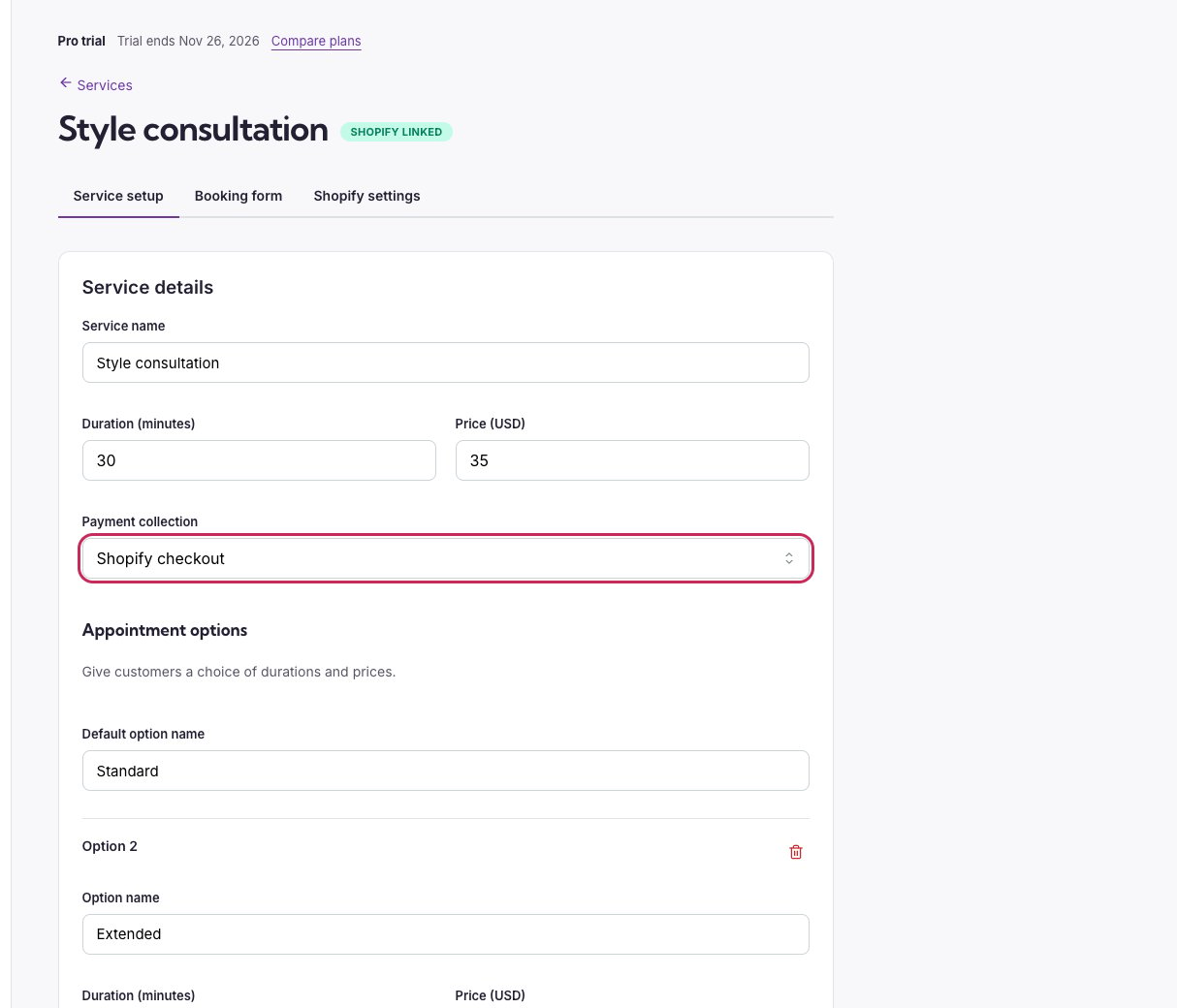
Service setup with payment collection circled below the service duration and price.

Set the duration, price and payment method before choosing availability.

Service setup options
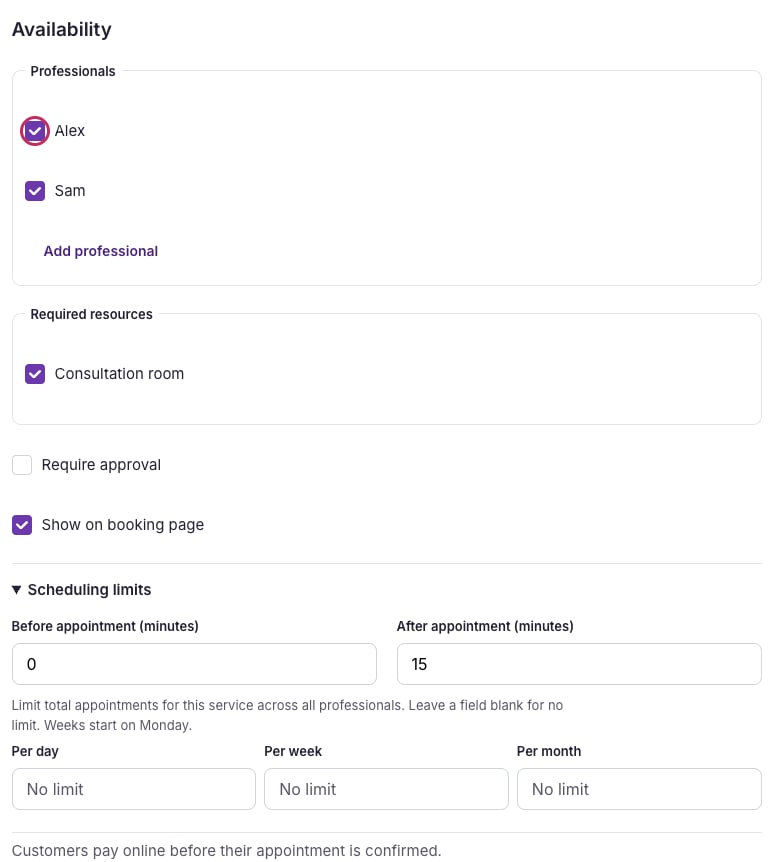
Service availability with professional assignments circled above resources and scheduling limits.

Select people and any shared room, then review approval, visibility and scheduling limits.

Forms, Shopify products and public pages

  • Booking form controls phone/notes, the policy acknowledgement, and up to 25 questions, including all waiver methods. See questions and waivers.
  • Shopify settings publishes or links the service product and configures sales channels, collections, location and template. Save setup changes first. See Shopify publishing.
  • Settings → Hosted pages → Enable hosted pages → Service page to edit adds a direct public URL and description for a service. See hosted pages.
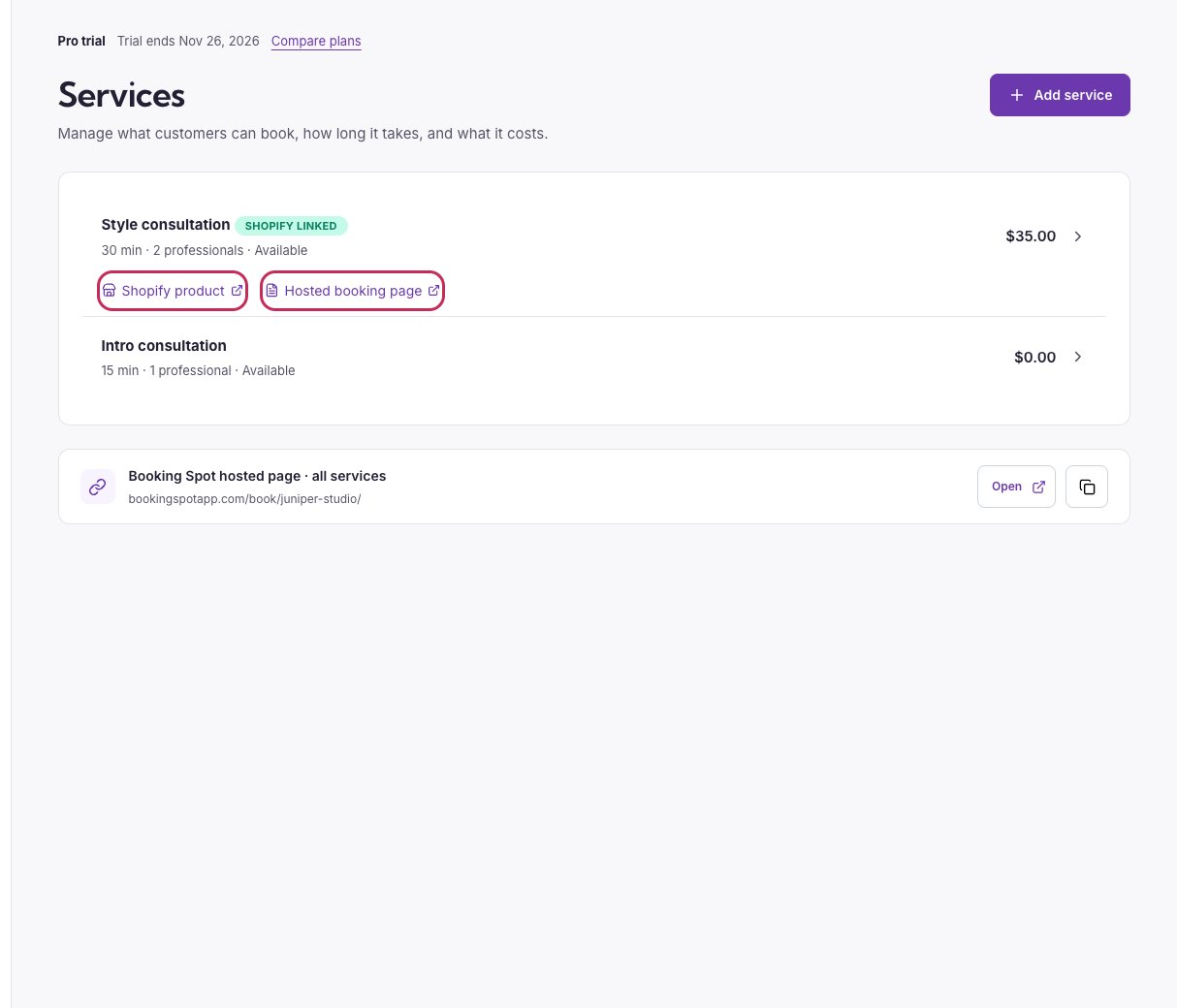
New Shopify services open Shopify settings after saving when they use Shopify checkout. In onboarding, choose Publish after Design to open those product options. Services and Team remain available after onboarding for ongoing changes. In the service list, Shopify product opens a known storefront product page for a connected store. If its storefront URL is not yet available, Shopify product settings opens the publishing options. A standalone workspace shows no Shopify links. Open an existing service to find Share on Shopify with Open and Copy actions. Hosted sharing appears after you opt in through Set up hosted page. The setup link selects that service under Settings → Hosted pages. Give the service a URL, enable hosted pages, choose search visibility and save. Hosted booking page opens that service directly; All services hosted page opens the business service list. Hidden or plan-paused services do not get hosted sharing links.
Services list with Shopify product and hosted booking page links beneath a service.

Open the connected Shopify product or the enabled hosted page from the service list.
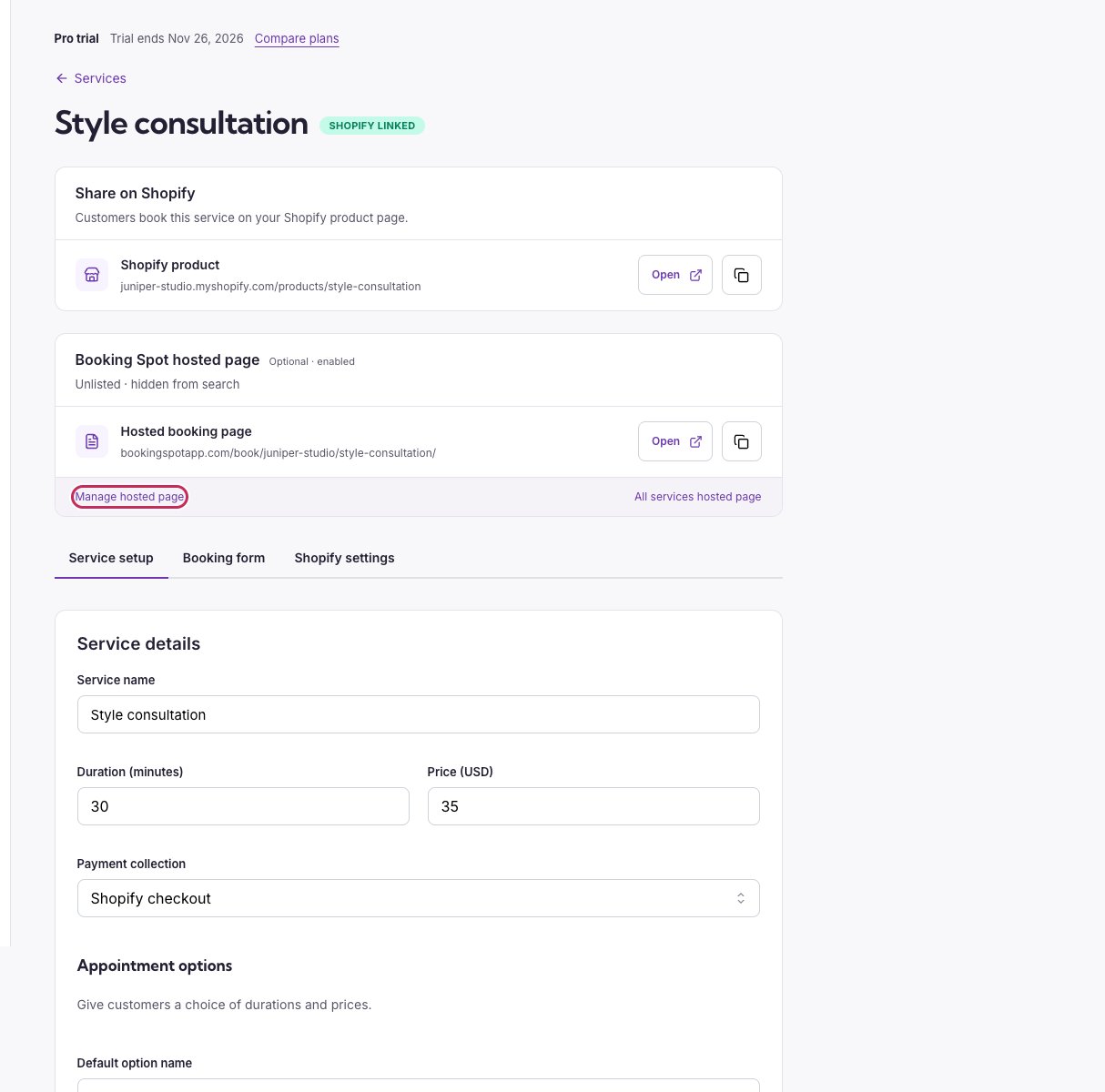
Service editor with Open and Copy actions for Shopify and hosted booking pages, plus Manage hosted page.

The service editor keeps Shopify sharing and optional hosted sharing separate.

Shopify product links apply to connected stores with a linked product. Booking Spot hosted pages are an optional way to share your full service list or one service directly. You can keep hosted pages Unlisted to share without search indexing, or withdraw the hosted pages while keeping Shopify bookings available.

Change an existing service

Open the service, edit the fields and save. Review existing appointments separately when changing duration, price, professional assignments or buffers; previous bookings are not automatically moved to fit a new schedule. After changing Shopify prices or options, also Review update → Update product. A general widget redesign is saved in Widget, not separately on every service. To pause one service, turn off Show on booking page. To pause one person, use Team → Accept bookings. To close all services for a holiday, use business closures.

Add questions or a waiver

See Questions and waivers for every answer type and all three waiver methods.

Show or hide the cancellation acknowledgement

Use Booking form → Cancellation policy checkbox. See customer detail and consent options.

Free services and upgrading

Free includes one active service with unlimited bookings and team members. Publishing or linking its Shopify product and accepting paid bookings are included. New services beyond the Free limit start hidden so you can prepare them. Keep the extra service hidden, hide your current service to switch, or choose Starter to make multiple services available together. After a downgrade, other saved services show Paused on Free. Open one and select Use as Free service to make it the service customers can book. This changes new availability only; existing appointments remain in Calendar. Starter and Pro restore all active services. Multiple duration and price options require Starter or Pro.