A start time is offered only when the complete service and its buffers fit the professional’s available schedule and all required resources are free. The standard calendar checks possible starts at 15-minute intervals; appointment duration is configured separately. There is no interval selector in the current dashboard.

What controls a time

Check overlapping bookings

Alex works 9 a.m.–4 p.m. A booking occupies 9–11 a.m. A 30-minute appointment cannot start with Alex at 9:30, 10 or 10:30. An 11 a.m. start may appear if buffers and the other rules allow it. Sam can work at the same time unless a shared resource or Sam’s own schedule prevents it. Continuing from time selection creates a temporary hold, normally up to ten minutes, while the customer finishes. Another customer may see fewer times while that hold is active. Pending approval still occupies the booked interval. A cancellation or decline releases availability, subject to the remaining rules.

Share a room or piece of equipment

  1. Open Settings → Business and policies → Rooms and equipment.
  2. Enter New resource, for example Consultation room, click Add resource, then Save settings.
  3. In every service needing that room, tick it under Required resources and Save service.
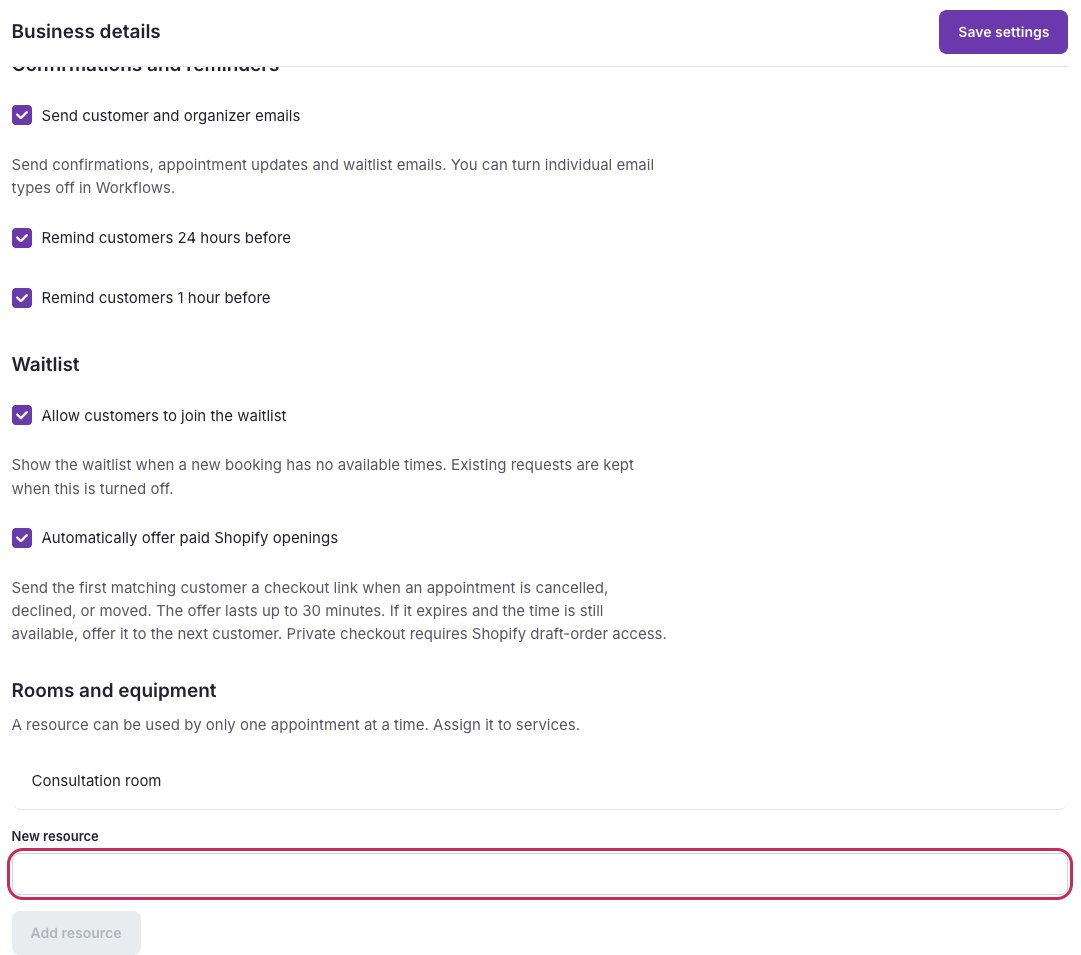
Rooms and equipment with New resource circled and the saved Consultation room shown.

Add the resource, save settings, then assign it to the services that share it.

Each resource can serve one appointment at a time, across all professionals and services that require it. Separate independent rooms need separate resources. A resource is not a quantity setting or a Shopify location. The current editor does not offer a separate room blackout calendar. Use business closures for a whole-business shutdown, or professional time off for an individual’s absence. Do not use a business closure if other rooms should remain bookable.

Close the business for a date

  1. Open Settings → Holidays and closures.
  2. Enter Closed from and Closed through. Both selected dates are included, using the business time zone.
  3. Click Add business closure, then Save settings.
  4. Review existing appointments in Calendar and contact customers who need to move.
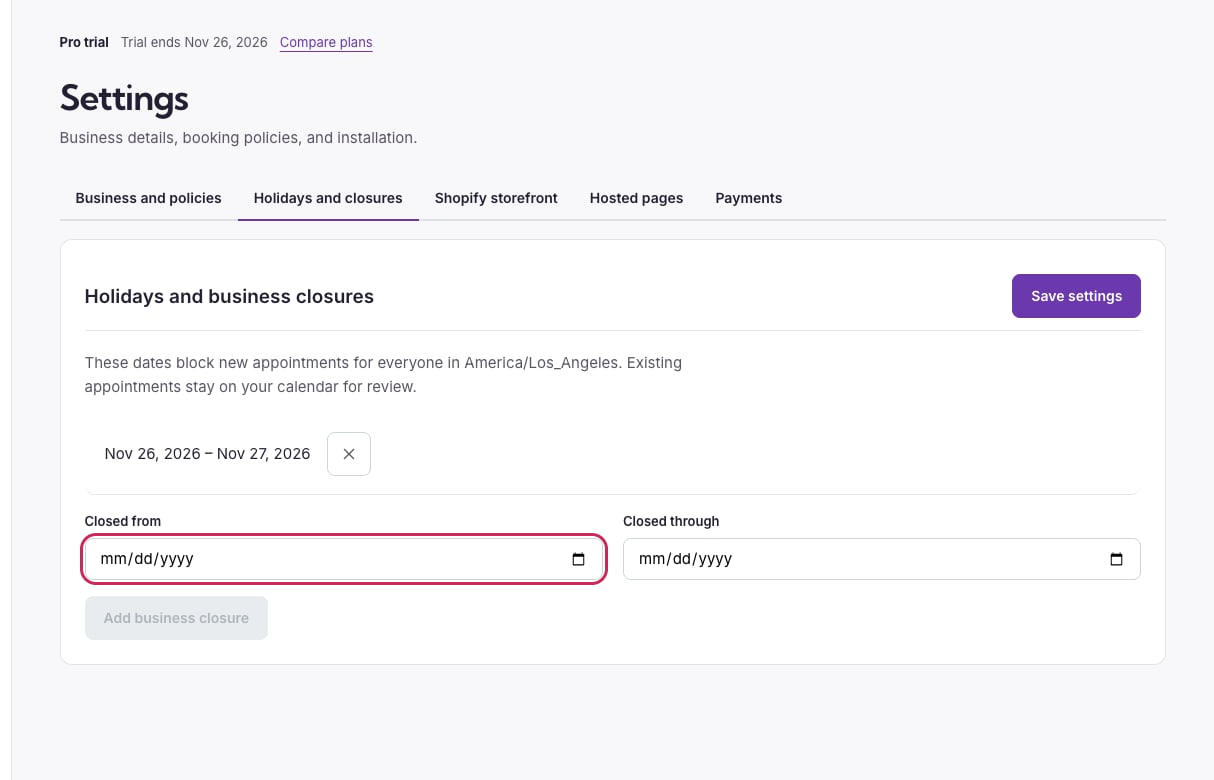
Business closure settings with the Closed from date circled and a saved closure above it.

Closed from and Closed through block the selected business dates. Save after adding or removing a period.

Use the remove icon beside a closure and save to reopen it. Closures prevent new bookings; they do not cancel registrations or appointments. For one person or a partial day, use time off.

Troubleshoot missing times

Check each row above, including date overrides, booking limits and Google Calendar connection status. The month/three-month team view is for planning hours; the Calendar page is for actual appointments. See troubleshooting if the available starts still differ from what you expect.