
Google Calendar booking.
Your booking page should know.
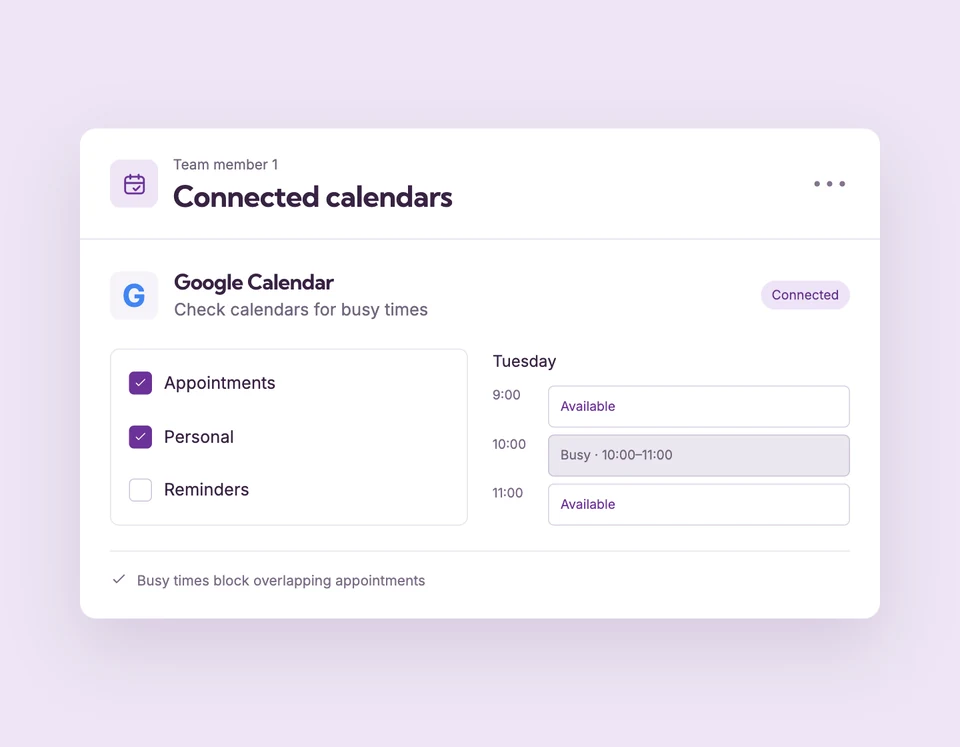
Connect one Google account for each professional and choose the calendars that should block appointments. Personal plans and existing commitments can stay in Google while Booking Spot checks for conflicts.
Google Calendar conflict checks require Starter or Pro, including an active eligible trial. Compare plans
Your calendar is busy.
Set up Google Calendar for your business.
Connect the professional
Save the person in Team, open Google Calendar and authorize their Google account. No merchant API keys are required.
Choose calendars to check
Select the primary, personal or shared calendars that should block busy time, then save. Each professional has their own selection.
Keep overlapping times unavailable
Busy periods remove conflicting starts within that person’s working hours, wherever the Booking Spot calendar is installed.
A personal event at 10.
No accidental overlap.
A 10–11 a.m. busy event on a selected calendar prevents an appointment from overlapping that hour with the connected professional. The same event does not block another professional’s independent schedule.
The details
that matter.
Know what the feature does, how it is configured and where its limits are.
- Choose what counts
- Select up to 50 accessible calendars from the connected account. A connected account with no selected calendars does not block busy time.
- Keep weekly hours in Booking Spot
- Google events remove conflicts; they do not create or replace your professional’s working hours.
- Clear connection status
- Reconnect when access needs attention. If selected calendars cannot be checked, new online bookings for that person stop until the issue is resolved.
Before you get started.
Answers about Google Calendar, with guides for the next step.
Does Booking Spot write appointments into Google Calendar?
No. This connection checks busy time. It does not write bookings to Google Calendar, import event titles or create Booking Spot appointments from Google events.
Can every professional connect their own calendar?
Yes. Each saved professional can connect one Google account and select the calendars to check. Starter or Pro is required.
What happens if I disconnect Google Calendar?
External busy times stop blocking bookings for that professional. Their Booking Spot hours and existing appointments remain. Review availability before disconnecting.
Take a closer look.
Try the sample calendar, then follow the guide when you are ready to set up your business.
Explore the related guide