
Shopify appointment checkout.
Then choose how they pay.
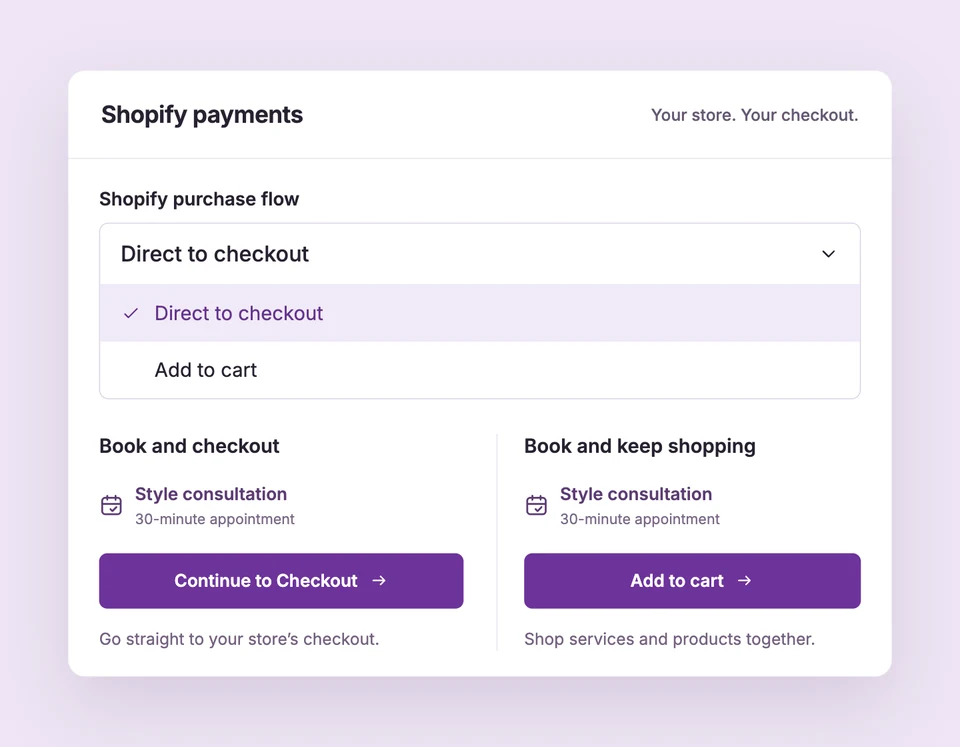
Let a customer book and pay right away, or add their appointment to the cart and keep shopping. Your store’s enabled payment methods handle checkout.
Shopify checkout and cart are included in Free for your one active service. Additional active services require Starter or Pro. Compare plans
Choose a time.
Set up Checkout & cart for your business.
Choose the purchase flow
In Settings → Payments, choose Direct to checkout or Add to cart. Direct checkout is the default.
Keep the booking short
In Widget → Booking flow, choose whether eligible customers enter contact details at Shopify checkout and whether single-choice service and professional steps are skipped.
Confirm after payment verification
Booking Spot holds the time temporarily while the customer finishes. A paid appointment confirms after its matching order is verified.
One appointment.
Two ways to finish.
A shopper can go directly from a selected appointment to checkout. Or they can add a treatment and retail products to the same storefront cart. Both paths still need a valid appointment reservation when payment is completed.
The details
that matter.
Know what the feature does, how it is configured and where its limits are.
- Collect contact details once
- For eligible paid Shopify bookings, name and email can be collected at checkout. Required phone, notes, intake questions and private waitlist offers keep contact collection in the widget.
- Do not skip required agreements
- Waivers and policy consent remain before checkout even when contact collection is shortened.
- Know the exceptions
- Free services confirm in Booking Spot without a Shopify order. Hosted pages and private waitlist checkouts go directly to checkout rather than the storefront cart.
Before you get started.
Answers about Checkout & cart, with guides for the next step.
Why does a free appointment still ask for name and email?
A zero-price service confirms without Shopify checkout. Booking Spot needs contact details for the confirmation and private management link.
Does adding to cart confirm an appointment?
No. The reservation is temporary and the paid order must be verified. If the hold expires before payment, remove the old appointment line and choose a new time.
Where do I change the contact collection setting?
Open Widget → Booking flow. Turn Collect name and email before Shopify checkout on or off, then save the design. The shortcut applies only to eligible bookings.
Take a closer look.
Try the sample calendar, then follow the guide when you are ready to set up your business.
Explore the related guide