Connect a professional’s calendar
1
Open their calendar settings
Save the professional first. In Team, select that professional above the schedule, then click Google Calendar. You can also open their profile and choose Google Calendar.
2
Authorize Google access
Click Connect Google Calendar. Sign in to the Google account containing that person’s calendars and allow both requested permissions. When opening Booking Spot inside Shopify, allow the connection window if your browser blocks pop-ups.
3
Select calendars to check
Back in Booking Spot, tick the calendars under Calendars to check. The primary calendar is initially selected when available. Choose up to 50 calendars from the connected account, including shared calendars you have permission to check.
4
Save and verify
Click Save calendars. Look for Checking 1 calendar or the selected count. Open the customer calendar and check that a busy period is unavailable for this professional while other professionals can still be booked.
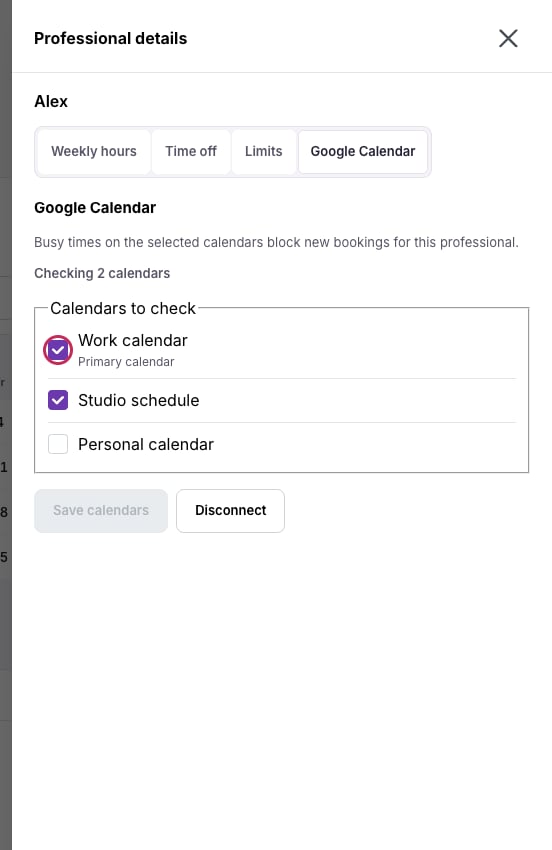
Tick the calendars whose busy time should block bookings, then save the selection.
What this connection does
- The professional’s working hours define when appointments may start. Google busy time removes conflicts inside those hours; it does not create working hours.
- For a 9–11 a.m. busy event, overlapping starts such as 9:30 and 10 a.m. are unavailable. Another professional remains available unless their own schedule or shared resources also block them.
- This is a conflict-check connection. It does not import event titles into Booking Spot, create appointments from Google events or write Booking Spot bookings into Google Calendar.
- Selecting no calendars leaves the account connected but disables external conflict checking for that professional.