- Use Day or Week to see appointment times, Month to scan upcoming dates, or Agenda for a list. Select a date from the month grid to open it in Day view.
- Use Today or the arrows to move through the schedule.
- Filter by Professional, Service, or Appointment status. Select one professional in Day or Week view to shade the hours outside their schedule.
- Time off and business closures appear alongside appointments.
- Open an appointment to review its service, customer details, status, and available actions.
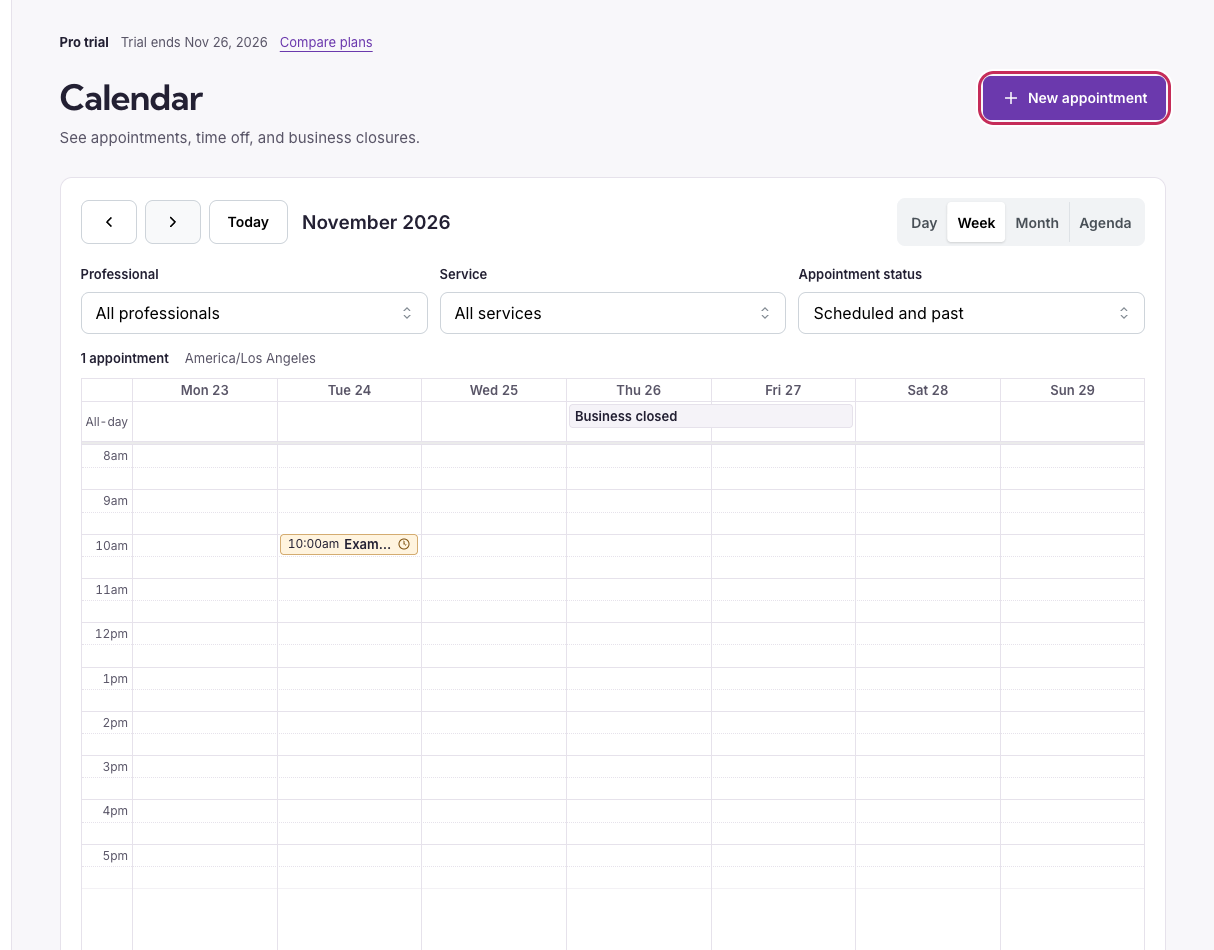
Switch to Week for a wider view. Use New appointment when a customer books by phone or in person.
Book for a customer
- If New appointment is unavailable, check Accept appointments under Settings → Hosted pages.
- Click New appointment. The booking calendar opens inside the dashboard.
- Choose the service, professional, and time. Enter the customer’s details and finish the booking.
- Close the form and verify the new appointment in the calendar.