Edit and preview an email
- Open Workflows and pick Email type.
- Under Text and translations, choose Default copy or a language in Edit copy for.
- Edit the subject, message, and the available labels or link text. Some common fields, such as the footer and signature, are shared between messages.
- Insert only the variables listed under that field. Booking Spot replaces them with booking details. Keep the braces and spelling as shown. For example,
{{service_name}}can insert the service name on a field that lists it. - In Live preview, choose Preview language. The waitlist opening preview can also show different link destinations.
- Click Save design when you’re satisfied. Use Use default to restore the stock text for a field.
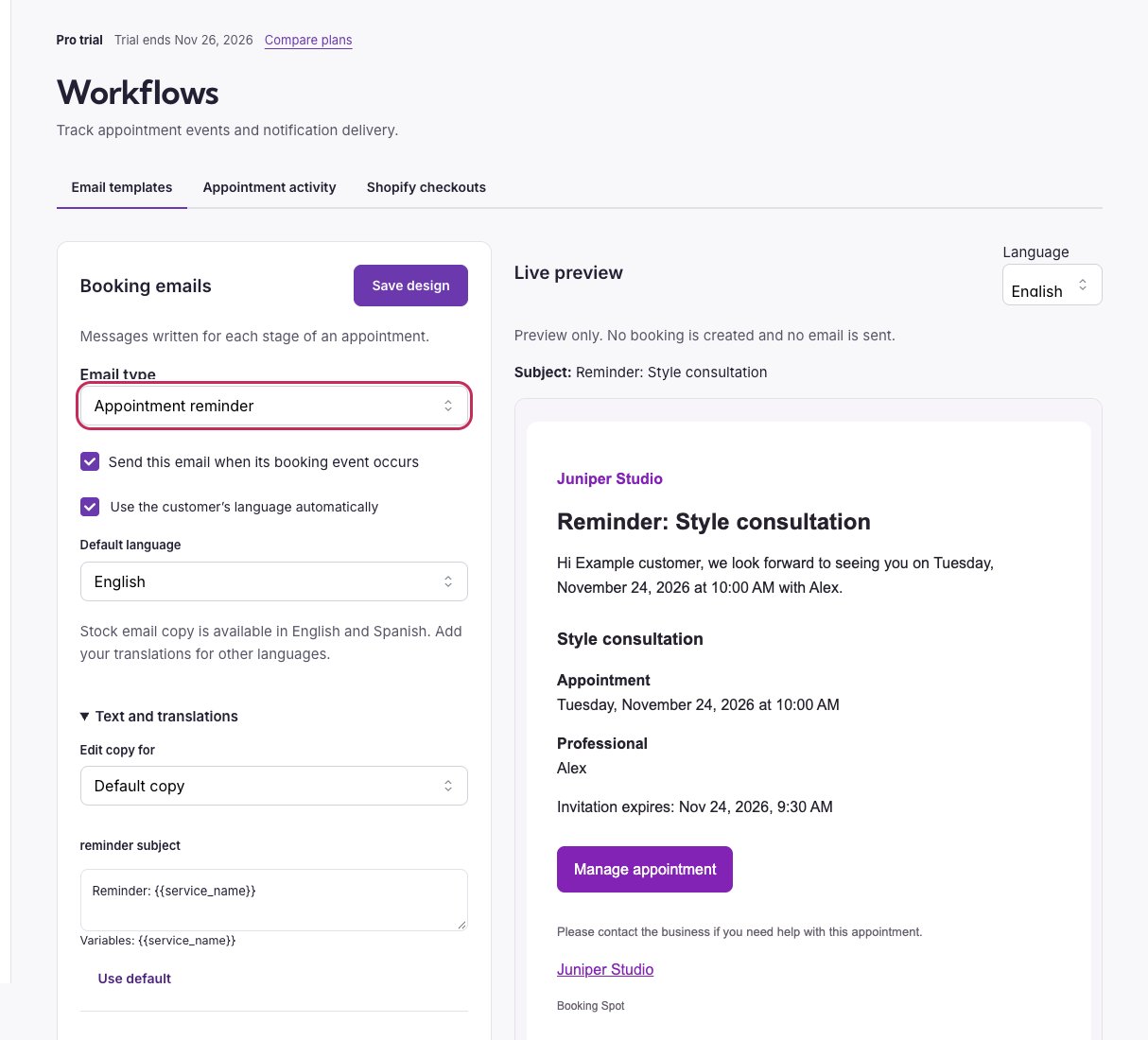
Choose an email type, review its preview, and control whether that message sends.
Set the language customers see
The widget has built-in text for English, French, German, Spanish, Italian, Dutch, Japanese, Polish, Portuguese, Korean, Bulgarian, Czech, Danish, Finnish, Hungarian, Indonesian, Norwegian, and Swedish. It uses the customer’s supported browser language automatically, including regional variants such as French Canadian and Brazilian Portuguese. Norwegian Bokmål and Nynorsk use the Norwegian text. A language specified by the storefront takes priority over the browser.
Your authored default wording is kept as written. Add a translation for each language where you want custom wording to change. A language-specific override takes priority over your default wording. Use Use default to remove the selected override. If general custom wording remains, it still applies; reset that field in Default copy too when you want the built-in wording. Service names and additional questions keep the wording you entered in Services; they are not automatically rewritten.
Stock email copy is available in English and Spanish. Provide your own email translations for the other supported languages. Preview uses sample information and does not send an email.
For calendar-specific wording and appearance, see Widget design.
Preview templates on Free
In Workflows → Email templates, Free workspaces can choose an email type and explore a read-only preview. Message text, sending controls and save actions stay locked. Pro, including an active Pro trial, unlocks editing. If eligible, select Start 7-day free trial to review the plan in Billing. Approve the subscription through Shopify for a Shopify workspace, or Stripe for a standalone workspace. The trial starts after provider approval; installing Booking Spot does not start it automatically.Find and change widget text
- Open Widget → Text & languages.
- Choose the automatic language behavior and the default language.
- Search for a label, button, or message. Searching covers every text section.
- Choose Default copy or a language in Edit copy for. Built-in translations appear immediately, so you can edit them rather than start from a blank field.
- Keep any listed variables, such as
{{duration}}or{{timezone}}, when you want to include those values. Optional introductions and helper lines can be cleared to hide them. - Check the live preview, then click Save design. Switching tabs keeps unsaved edits; save before leaving the page.
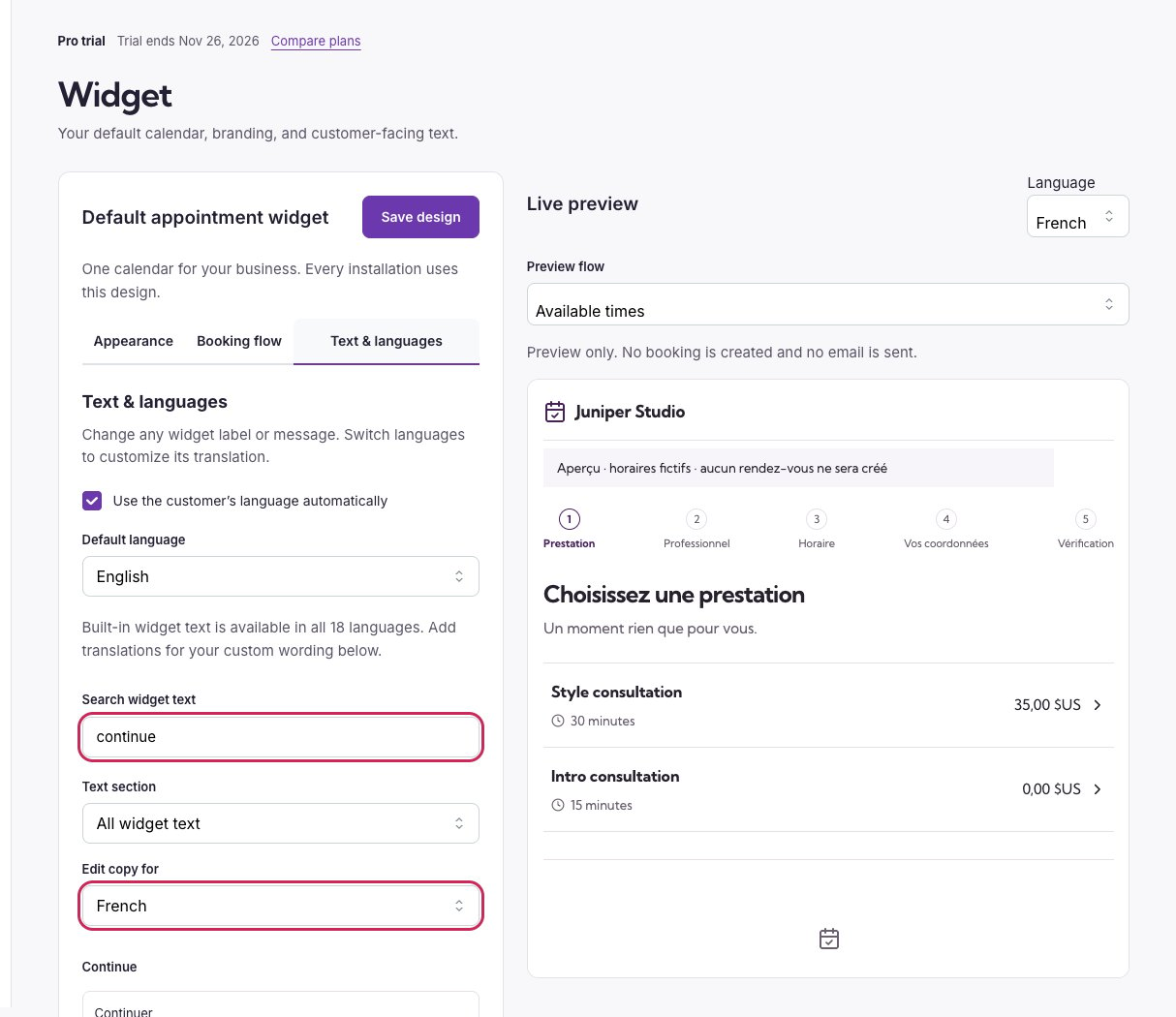
Search across widget wording and edit the French translation while the live preview shows that language.