Choose customer details
Name and email are collected for ordinary bookings. For eligible paid Shopify bookings, Widget → Booking flow can let Shopify collect them at checkout instead. Required phone, required notes or ordinary intake questions keep the details step. Required waivers and policy consent are still collected before checkout.
Hiding the cancellation checkbox does not change the cancellation and rescheduling window.
Add a question
- Click Add question and enter Question, up to 240 characters.
- Choose Answer type and whether Required answer is on.
- Add Help text (optional) to explain what the customer should enter.
- For short or long text, set Placeholder (optional) if useful. A placeholder is a hint, not a saved answer.
- For choices, edit Answer choices, use Add choice, or remove a choice. Use up/down buttons to reorder questions and the bin button to remove a question.
- Click Save service, then test the real form in your calendar.
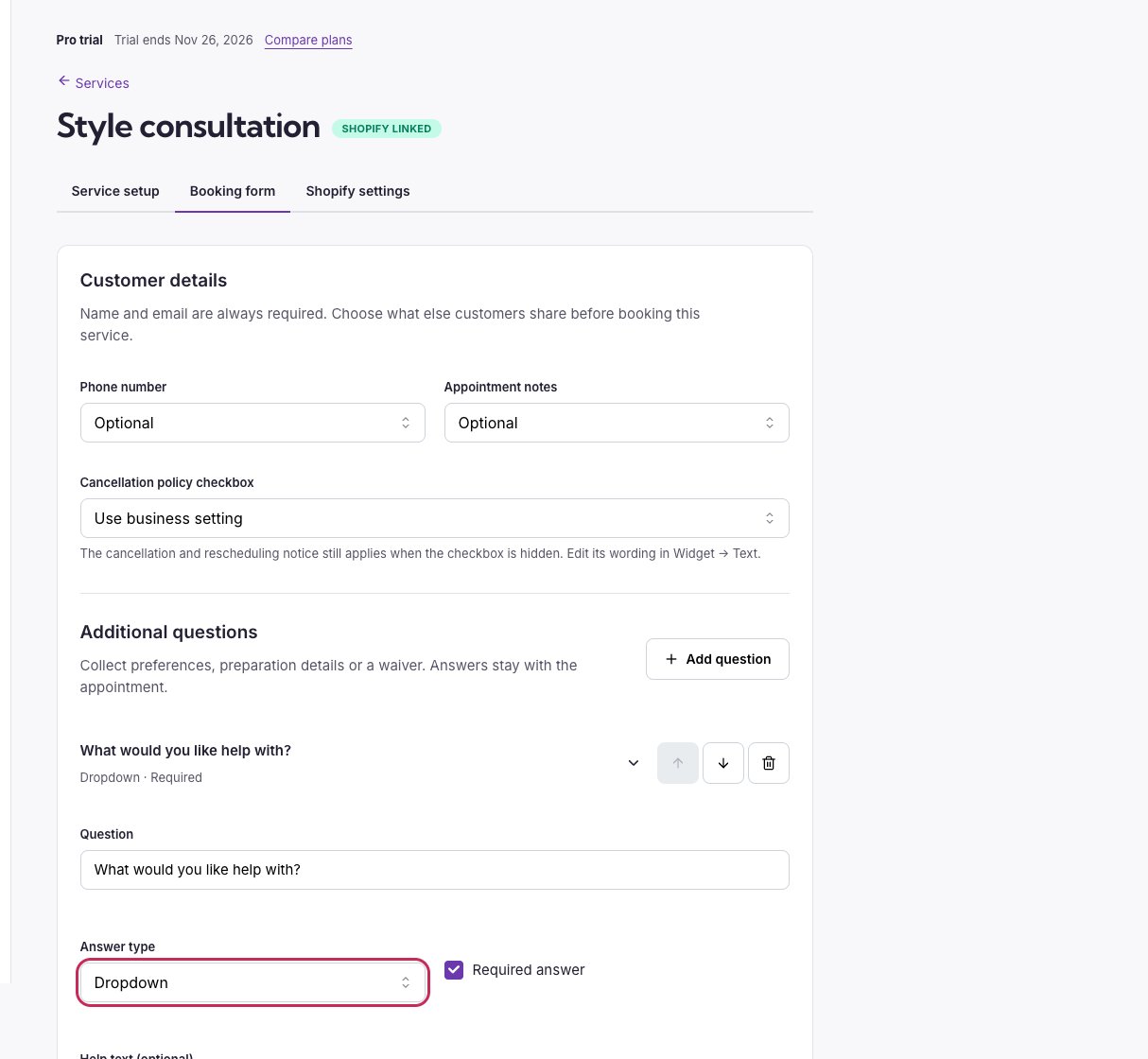
Expand a question to edit its type, requirements, hints and answer choices.
There are up to 25 questions per service and 40 choices per choice question. Choice labels can be up to 160 characters; help text up to 2,000; placeholders up to 240.
Collect a waiver
Set Answer type → Waiver, then configure: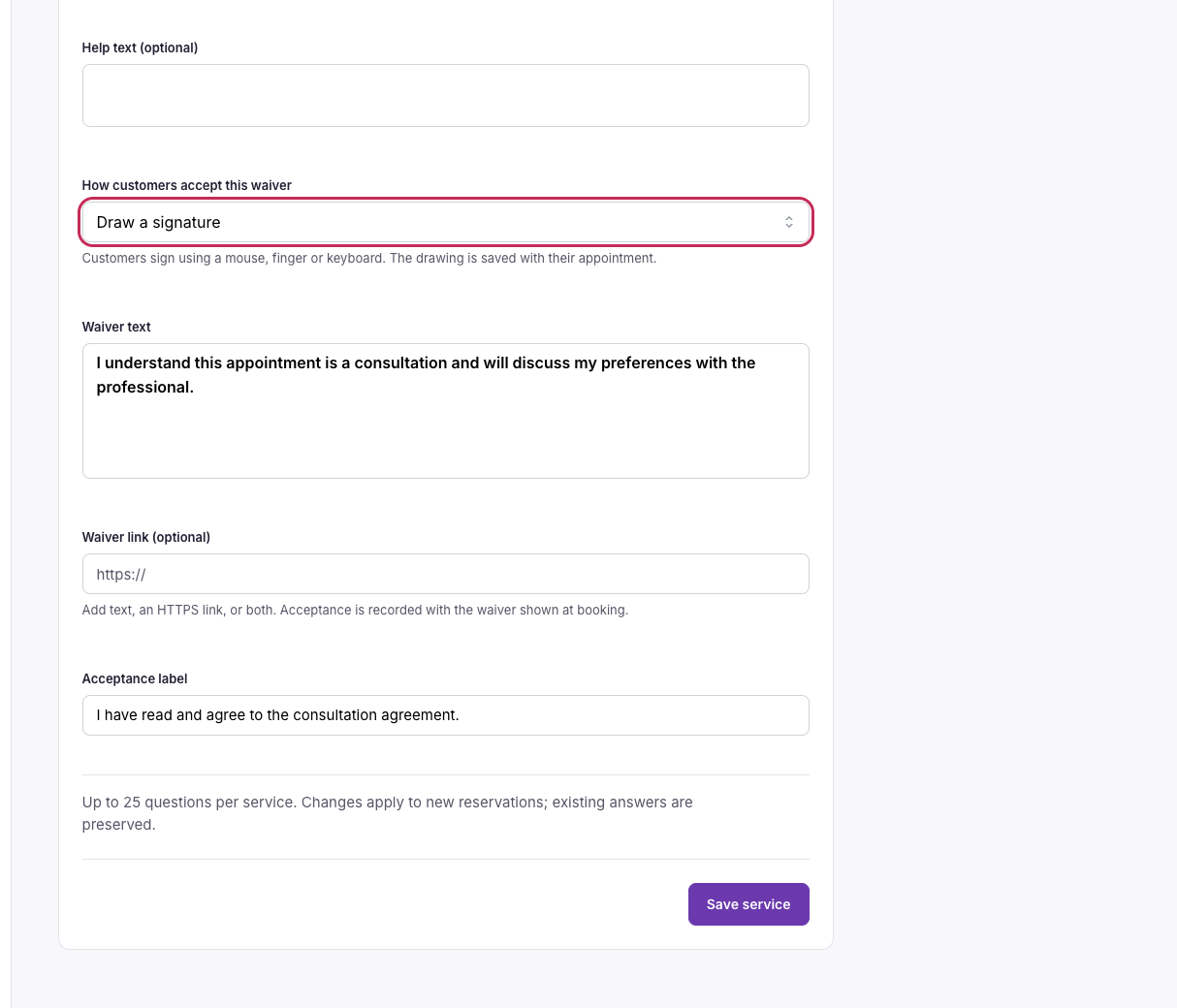
Choose the acceptance method for each waiver. Required waivers remain in the booking flow.