For a service linked to a Shopify product, share its product URL to bring customers to your storefront. Hosted pages are optional: share the business page for your service list or an individual service page for a focused booking link. Choose Unlisted to keep hosted links working without search indexing. You can turn hosted pages off independently of accepting bookings through Shopify.
Copy the full booking link
In Settings → Hosted pages → Install your calendar, open Preview booking calendar and copy the complete address from your browser. This link includes the booking page ID so it opens your business. Shopify app blocks find the published calendar for your connected store automatically.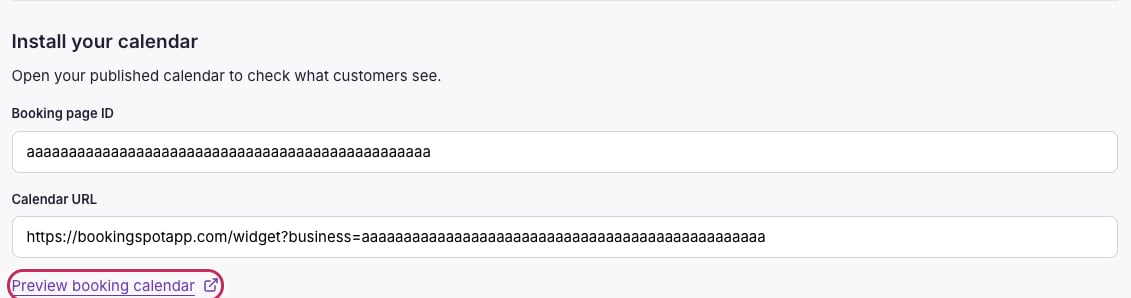
Open Preview booking calendar to get the full link for your business. The image shows an example address.