When a customer can’t find a time for their chosen service and day, they can join the waitlist in the calendar. They enter their contact details and agree to be contacted about an opening. A request can be for a specific professional or any eligible professional.

Review requests

Open Waitlist to see the service, date, customer, and status. Use Include closed requests to see withdrawn or converted requests. Choose Remove request to take a request off the active list.
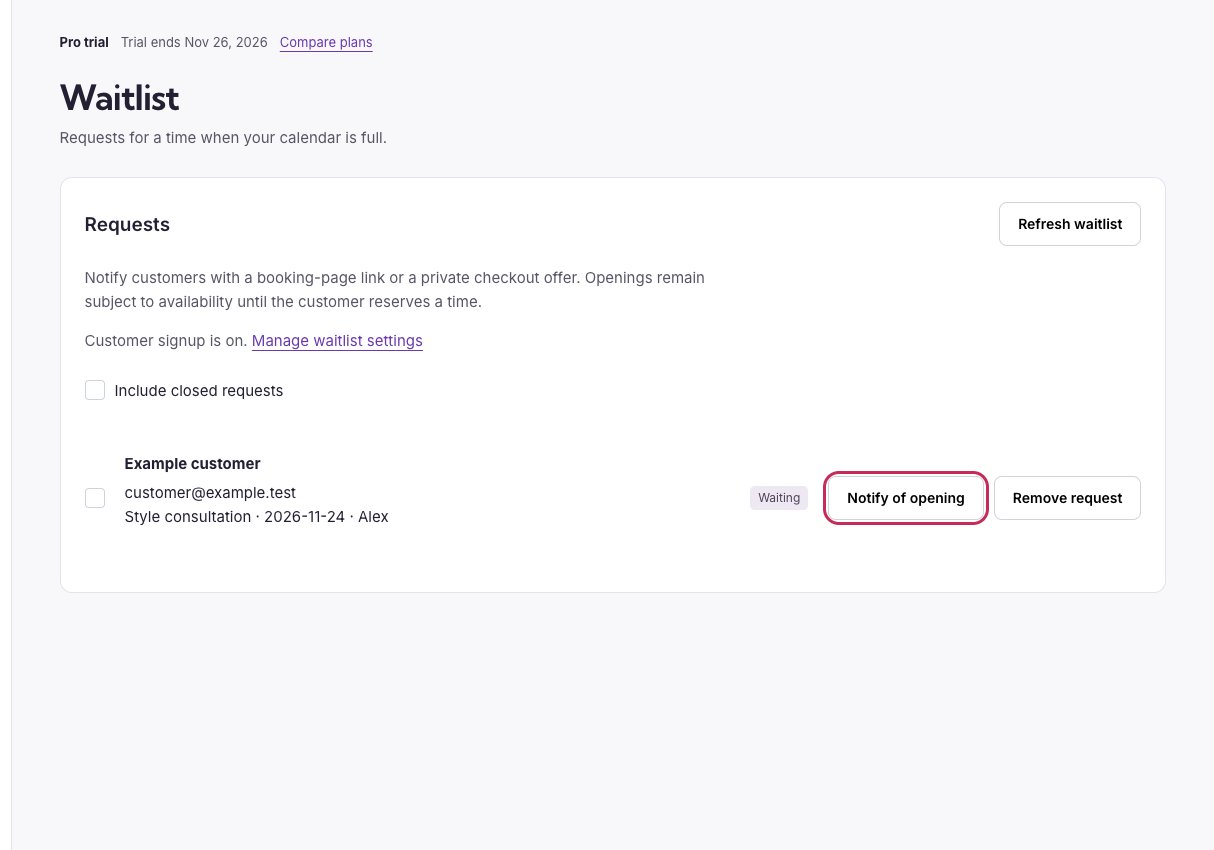
Booking Spot waitlist with a customer's Notify of opening button circled.

Open Notify of opening next to the customer you want to contact.

Notify customers about a time

First enable customer and organizer emails and leave Opening available enabled in Workflows.
  1. Click Notify of opening beside a request. To notify several customers, select requests for the same service and day and click Notify selected.
  2. Choose a destination. Booking page sends the customer to the calendar to pick an available time. Use the suggested calendar link or a page with the Booking block on your connected Shopify store.
  3. Choose an Available opening and click Send opening notification.
  4. Review the result. Queued means the message is ready for delivery. A skipped or failed row shows the reason.
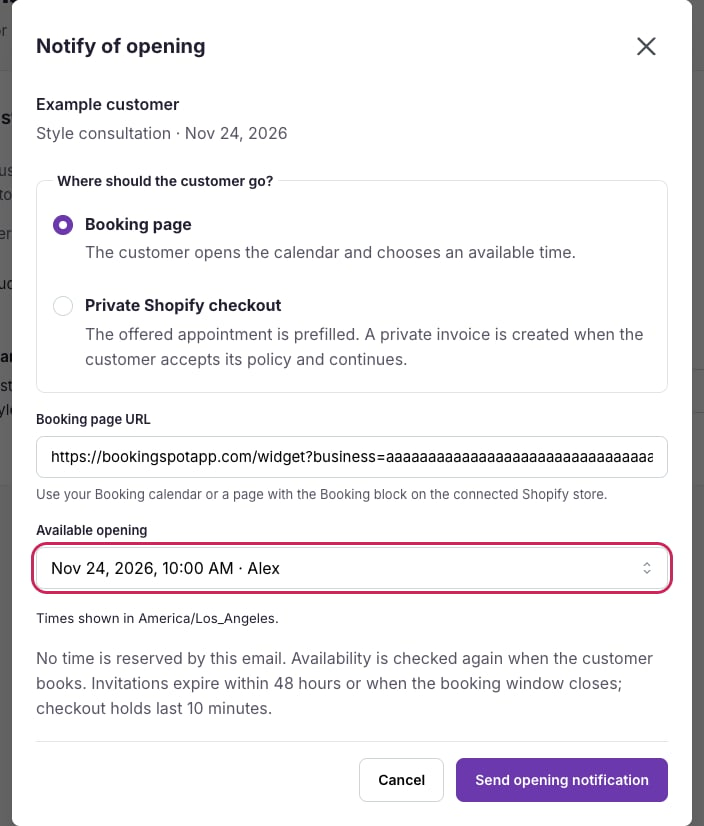
Waitlist release dialog with Booking page and Send opening notification circled.

Choose Booking page, pick an opening, and send the notification.

The link is private. The invitation itself leaves the time available to other customers. Booking Spot checks the time again when a customer reserves it and marks the waitlist request as converted after they finish booking.

Let Booking Spot follow up on an opening

When a cancellation, decline, or reschedule frees a future time, Booking Spot can notify the oldest matching request. It checks the requested service, day, professional, and current availability. If you add working hours or an opening isn’t offered automatically, review it and use Notify of opening.

Offer a private Shopify checkout

For a paid Shopify service with draft-order access, choose Private Shopify checkout in the notification dialog. The customer sees the offered service, professional, time, and price. Booking Spot creates a private checkout when they accept the policy and continue. The availability check still applies. To send these offers automatically, enable Automatically offer paid Shopify openings in Settings → Business and policies → Waitlist. The matched customer has up to 30 minutes to act, limited by your booking notice window. If the offer expires and the opening still qualifies, Booking Spot can move on to the next matching request. Learn about Shopify payment requirements.

Turn signup on or off

Waitlists require Pro or an active Pro trial. In Settings → Business and policies → Waitlist, use Allow customers to join the waitlist and save. Turning signup off keeps existing requests. Customers see the signup option only when a new booking has no available times; it is hidden while rescheduling. For confirmation and opening emails, turn on Send customer and organizer emails and the corresponding Workflows email type. If either switch is off, the opening dialog explains which setting to change before you send. Queued means the invitation is awaiting delivery, not that the customer already has a confirmed appointment. No invitations sent means none could be queued; review the reason before trying again.

Invitation timing and confirmation

Manual invitations expire within 48 hours or earlier when the booking window closes. An automatic paid Shopify offer lasts up to 30 minutes; the booking notice window can shorten it. Starting checkout creates a separate temporary hold, normally ten minutes. An invitation is not an appointment, and the time is rechecked before it can be booked. Automatic recovery follows an existing cancellation, decline or reschedule. It is not a scan that guarantees an invitation whenever you add working hours. Review new schedule openings manually. Free and pay-at-appointment services use booking-page invitations; timed private paid checkout requires the eligible Shopify setup. If no confirmation arrives after signup, verify the Pro plan, master email switch and Waitlist signup workflow. If an opening cannot be queued, read the dialog’s reason and use its settings link before retrying.