Choose which page to share
The business name and breadcrumb on an individual hosted service page return customers to the business page. Both hosted URL types follow your hosted search-visibility setting.
Create your business page
- Open Settings → Hosted pages.
- Turn on Accept appointments when you are ready to accept bookings, then turn on Enable hosted pages. Set Business URL to a readable slug such as
juniper-studio. - Enter your introduction, location, optional contact details and image. Preview before publishing.
- Keep Search visibility → Unlisted · hide from search for link sharing without indexing, or choose Public · eligible for search. New hosted pages default to Unlisted.
- Click Save settings, then Open your published booking page.
https://bookingspotapp.com/book/juniper-studio/. This is an example path; your saved slug identifies your page.
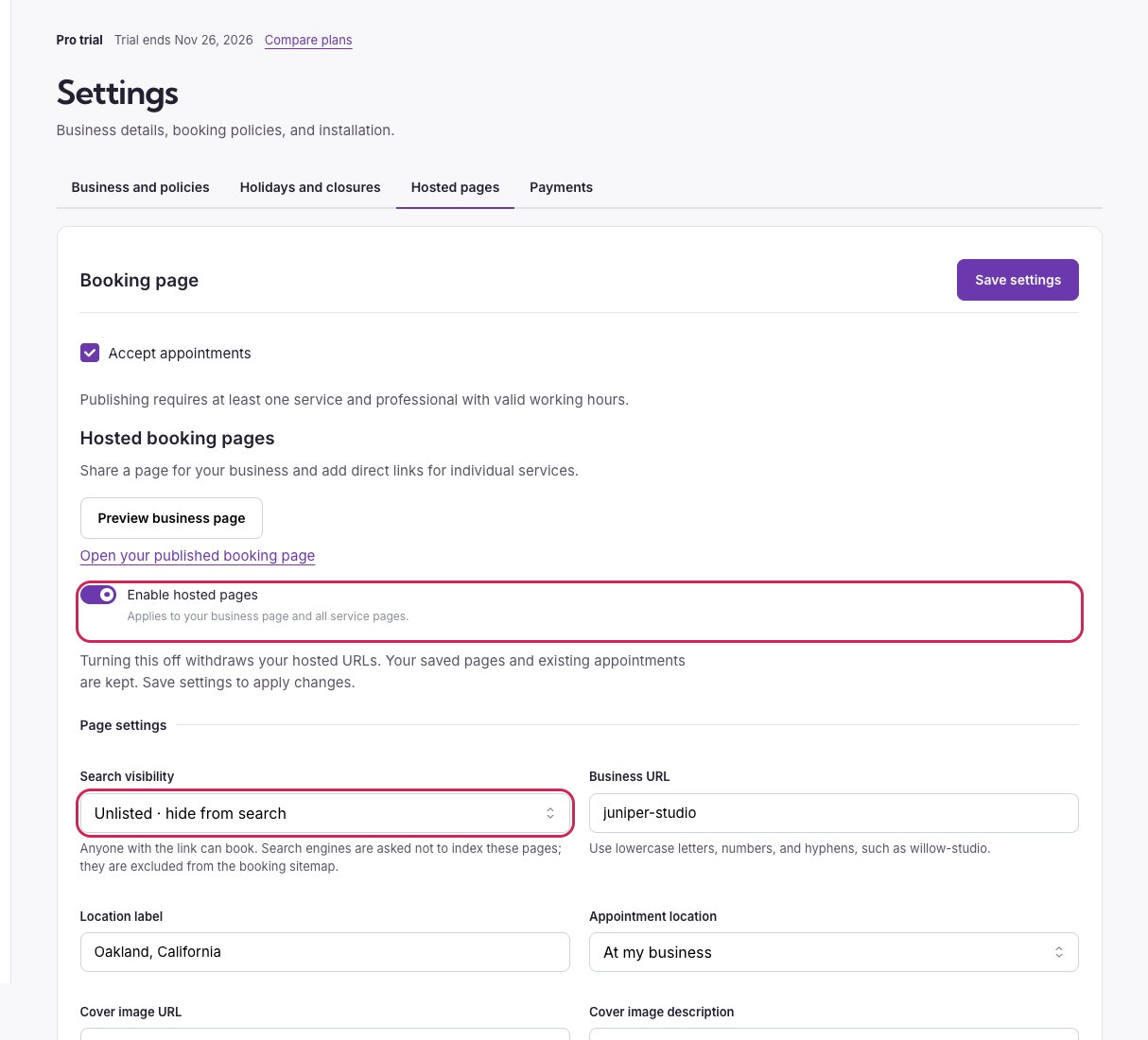
Enable hosted pages, then choose search visibility and a readable business URL.
Business page options
Create a page for one service
Choose Service page to edit, then set:
Save, then open the service page. Example:
https://bookingspotapp.com/book/juniper-studio/style-consultation/. The widget is focused on this service. Service price, duration, professionals and questions still come from Services.
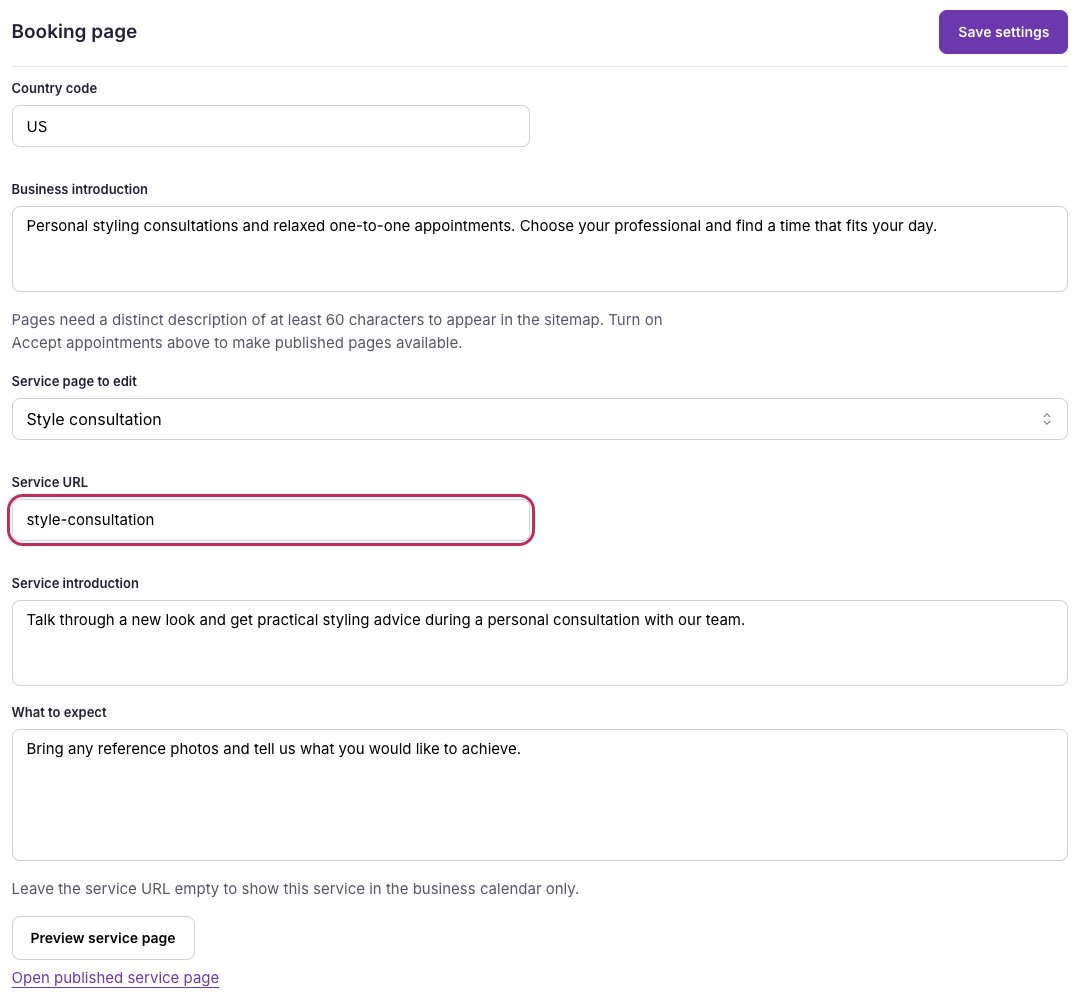
Give an individual service its own URL and description, then preview it.
Preview before publishing
Use Preview business page or Preview service page, then choose Desktop or Mobile. The preview can show unsaved edits and sample availability, including while hosted pages are off. You can enable the switch in your unsaved form to edit and preview; the public pages change only after saving. It creates no booking or email and is not a link you can share with customers. Close the preview and Save settings to publish your chosen changes.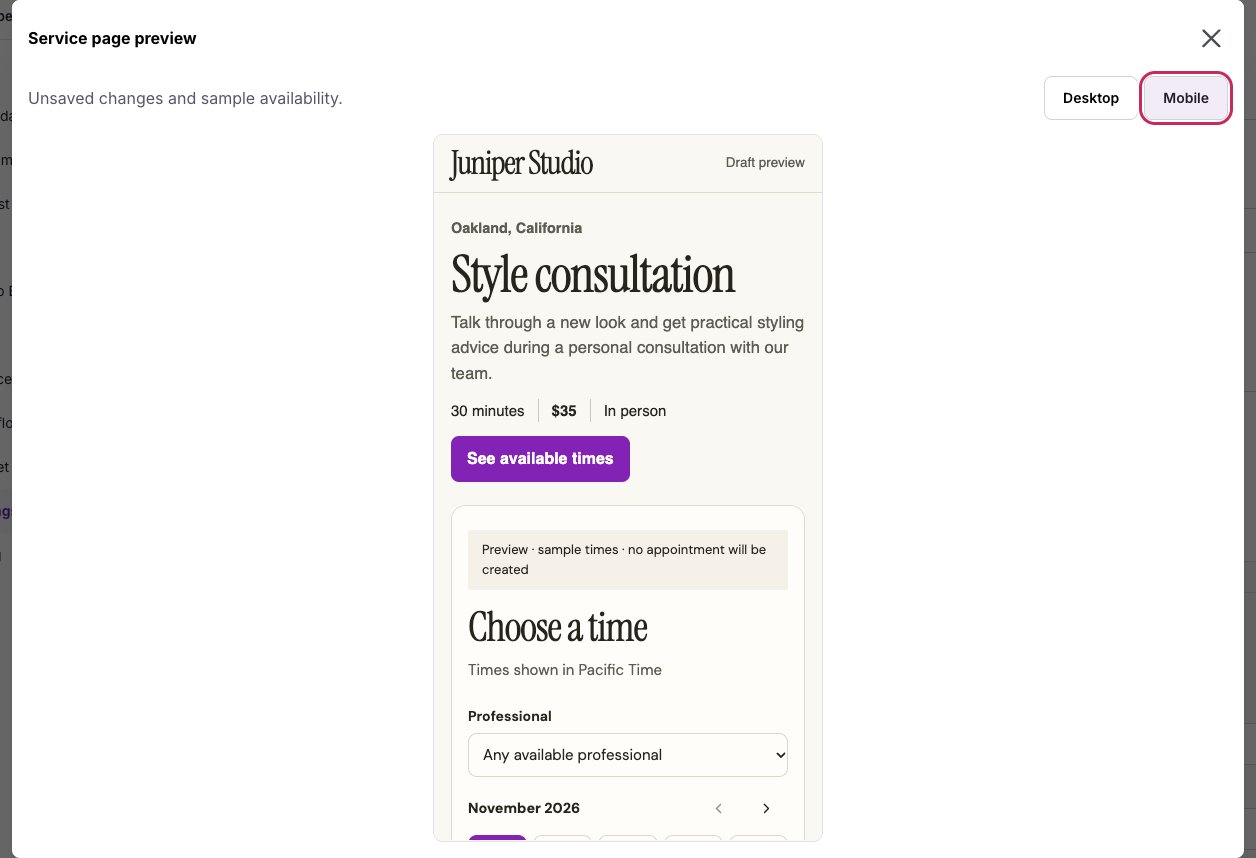
Check the service page at mobile width before saving. Draft preview uses sample availability.
Search visibility and SEO
Share a working link without search indexing
Choose Unlisted · hide from search and Save settings. Your business and service links remain available to share, and Booking Spot sends anoindex directive and excludes them from the booking sitemap. Anyone who has the link can still visit and book; Unlisted does not add a password or restrict access.
Choose Public · eligible for search if you later want qualifying hosted pages to be discoverable. Search engines control their own indexing and may take time to process a visibility change.
Keep the business URL short and recognizable. Give each service its own specific description instead of repeating the business introduction or another service. A public business page needs an active service and an introduction of at least 60 characters for sitemap inclusion. A service page also needs distinct copy of at least 60 characters; an external Shopify canonical takes it out of the booking sitemap in favor of that product URL. Making a page Public alone is not a guarantee of indexing.
Changing a saved slug redirects old paths to the new address; update your shared links too. Turning off Enable hosted pages and saving makes hosted pages unavailable. Turning off Accept appointments stops new bookings across the workspace. Hiding a service stops its public service page and calendar availability without cancelling existing bookings.