Enable signup and emails
- Open Booking Spot from your Wix site’s apps and confirm the correct workspace. In Billing, check that Pro is active. Wix manages upgrades for this workspace.
- In Notifications → Delivery & reminders, turn on Allow customers to join the waitlist and Send customer and organizer emails, then select Save settings.
- In Notifications → Templates, select Waitlist signup. Leave Send this email when its booking event occurs enabled. Repeat for Opening available, saving each change with Save design.
- Check your service, professional’s working hours and booking notice window. Keep Accept appointments enabled and publish the Wix page containing the calendar.
Enable timed recovery and protection
Open Notifications → Delivery & reminders → Waitlist. Keep customer emails and Opening available enabled, then:- Turn on Automatically offer unanswered openings to the next customer.
- Optionally turn on Protect the opening during each customer’s claim window.
- Set Claim window (minutes) from 5 to 120, then select Save settings.
What your customer does
1. Join on a day with no available times
The customer chooses a service, professional and first preferred day in your Wix calendar. When no times are available, they select Join the waitlist. They can turn on I can consider other dates or times, choose a last preferred date, weekdays and the earliest start/latest finish they can attend. They enter their name and email and agree to be contacted. A waitlist request does not make an appointment. The time range applies to the full appointment. Preferences use the business time zone. Leaving flexible preferences off requests the selected day only.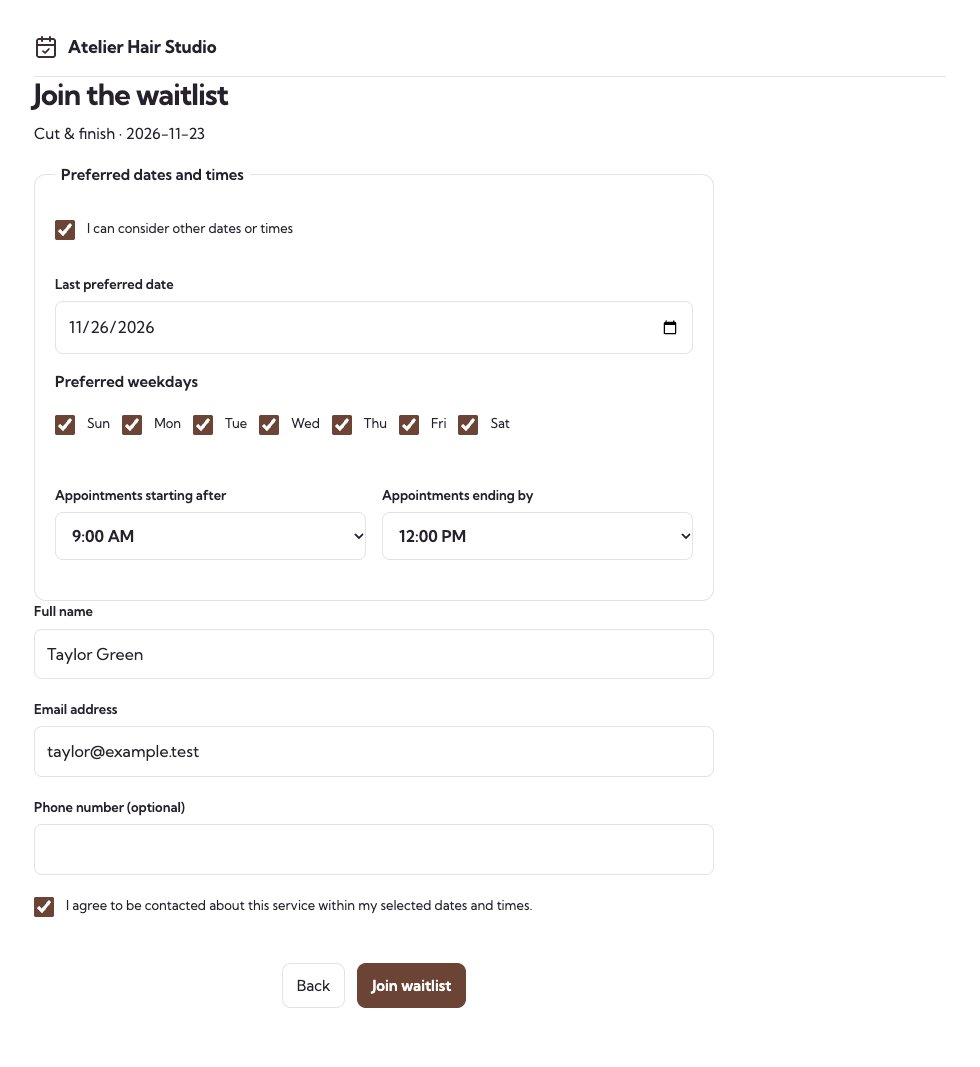
The customer joins directly inside the calendar embedded on Wix.
2. Receive an opening invitation
When an appointment is cancelled, declined or moved, Booking Spot checks the time being released. If it is still bookable, it notifies the oldest waiting request matching that service, preferred local dates, weekdays, time range and professional preference. It checks the lead time, capacity and connected calendar availability too. Opening available must remain enabled.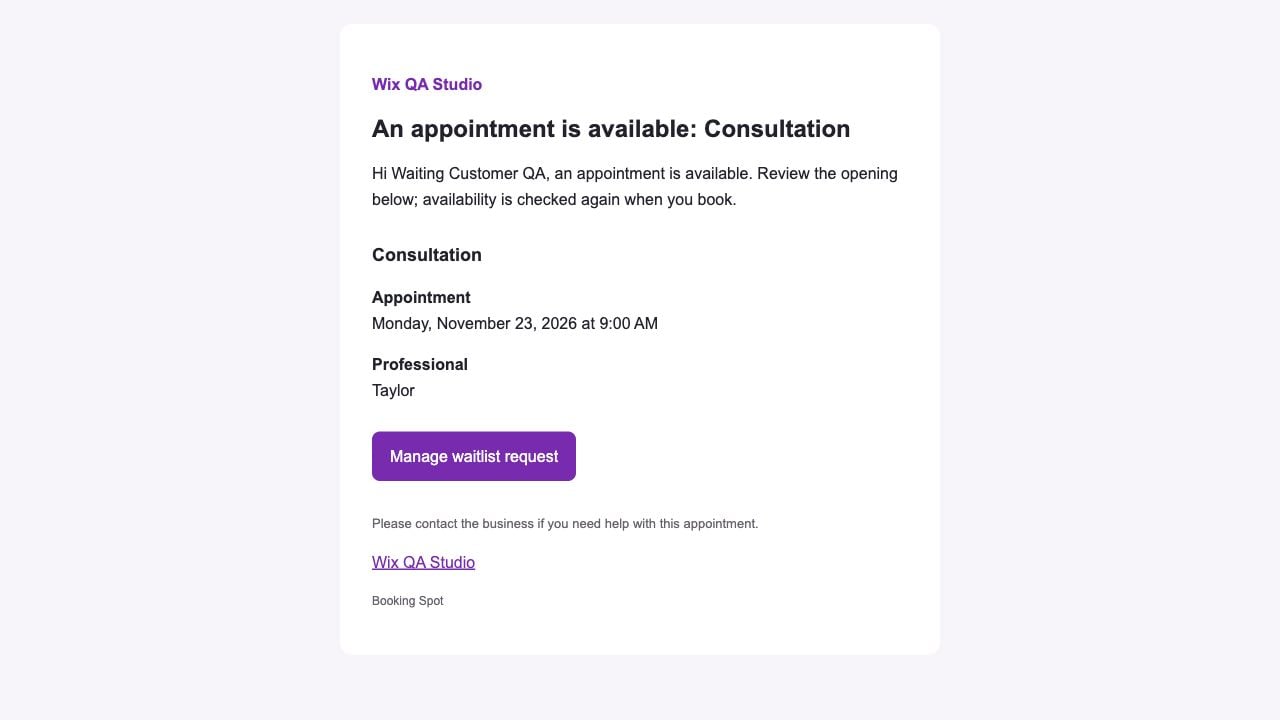
An actual opening email delivered during the controlled Wix test. Private link targets are omitted from this documentation capture.
3. Open the private link and choose a time
The email’s Manage waitlist request button opens Booking Spot’s secure calendar for this business, showing An appointment became available. The customer selects Check available times. Their service, offered day and professional preference are already selected. A protected offer shows its offered time only; other customers cannot take that allocation during the claim window.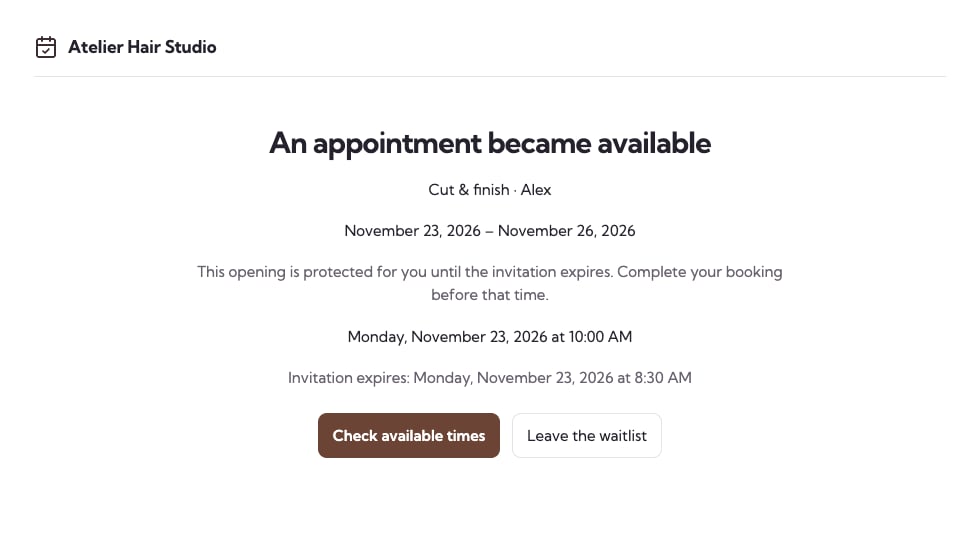
The email link restores the correct business and waitlist request without a Wix editor change.
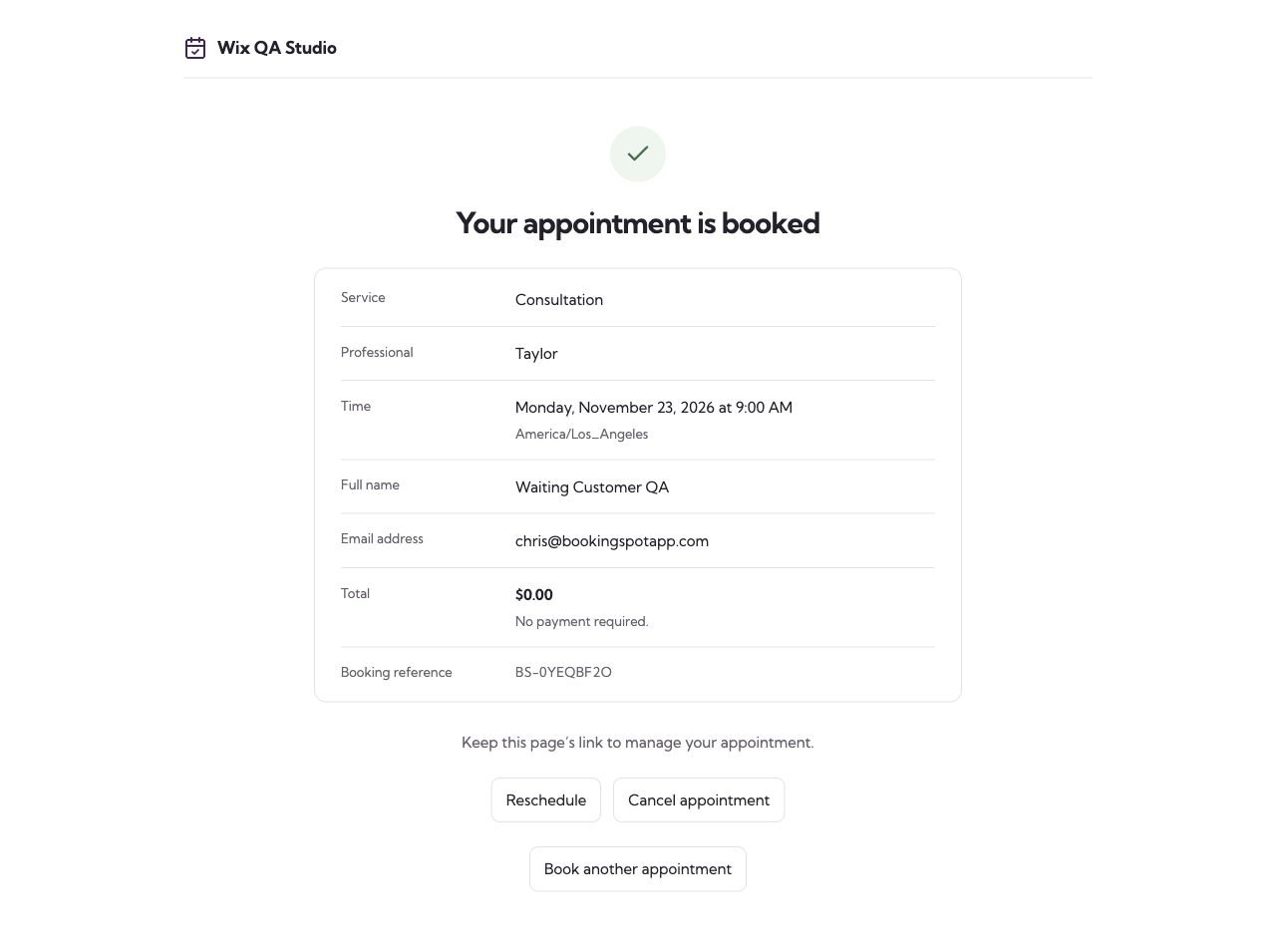
Only completing the normal booking flow confirms the appointment.
4. Check the converted request
In Waitlist, turn on Include closed requests. The request is now Converted, and the new appointment appears in Calendar. Reopening the invitation shows that the customer has already booked from that request; it does not offer another booking from the same request.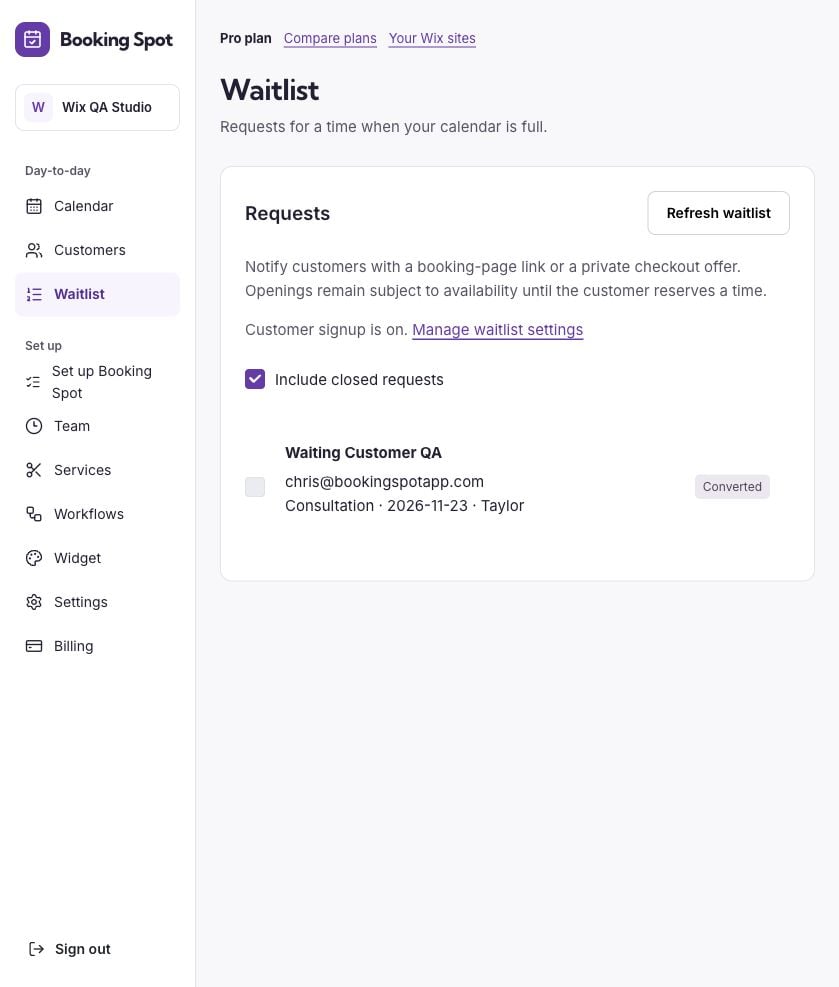
The same request changes from Waiting to Notified to Converted after booking.
If the customer does not book
An automatic timed invitation expires at the displayed deadline. Booking Spot releases protection and checks the opening again before inviting the next oldest matching request. The expired request is closed and appears under Include closed requests; the customer can make a new waitlist request if they still want another appointment. Withdrawing an automatic calendar offer releases it and advances the queue immediately when the opening still qualifies. A customer already finishing a normal checkout hold can complete it within that hold. The expiry worker waits for the hold to settle before approaching another customer. A confirmed booking stops the sequence. Expired or changed invitations cannot take an opening already allocated to someone else. Turning automatic recovery or emails off stops further invitations. An existing protected window ends at its deadline. Free or Starter cannot send new Pro offers.Check the results
Open Waitlist → Recovery results. Choose dates to see released openings, invitation status and recovered appointments. Booked value and collected payments are separate, with each currency shown separately. See recovery results for the definitions and screenshot. For a time that still cannot be booked, use Calendar → Why is a time unavailable? See check an unavailable time.Send an opening manually
Use Waitlist → Notify of opening. A flexible request offers an Opening date selector within its preferred range. Choose a matching time. You can protect a manual offer for one customer; turn protection off to notify several customers. A manual offer does not start an automatic sequence.How the private link works with Wix
No code, ID entry or widget reinstall is needed. Booking Spot puts your calendar’s public business ID in the email link and the request ID plus private access token after#. The calendar reads those details and securely loads that request. The token is not a query parameter sent with the page request.
The invitation opens bookingspotapp.com/widget, rather than your Wix page. It uses the same workspace, services, saved calendar design and language settings. A design override saved only on an individual Wix element does not apply to this separate calendar view. Keep private invitation links private; anyone with a valid link can manage that request.
Do not replace the email link with your Wix homepage or append the request ID to a Wix embed yourself. A normal Wix page URL does not restore the customer’s private request. For manual Notify of opening invitations, keep the suggested Booking Spot calendar URL. The customer can also use your normal Wix calendar for unrelated new bookings.
If an invitation does not arrive or no time is available
- Check Pro, signup, master emails and both waitlist workflow switches in the same Wix workspace. Free and Starter cannot create or send waitlist invitations.
- Confirm the request matches the service, day and chosen professional. A cancellation inside the booking notice window may no longer leave a bookable time.
- A request shows Notified when its opening email is queued. Check Activity for delivery status; queued is not a delivery receipt.
- For advisory invitations, another customer can take the opening before or after sending. Protected offers can also become unavailable if service details, external busy time or booking rules change. The booking flow always checks again.
- Automatic invitations follow an actual cancellation, decline or reschedule. Adding hours does not scan all requests; use Waitlist → Notify of opening to select and send a new opening manually.
- If the next customer is not invited, check that automatic recovery remains enabled, the opening still matches their complete preferences and no booking, checkout hold or external calendar conflict blocks it.