- Choose a saved Service and Professional.
- Select the Date and Start time in the business time zone displayed below the form.
- Select Check availability.
- Read the blockers first. Use the adjacent settings link where offered, make your change, then check the time again.
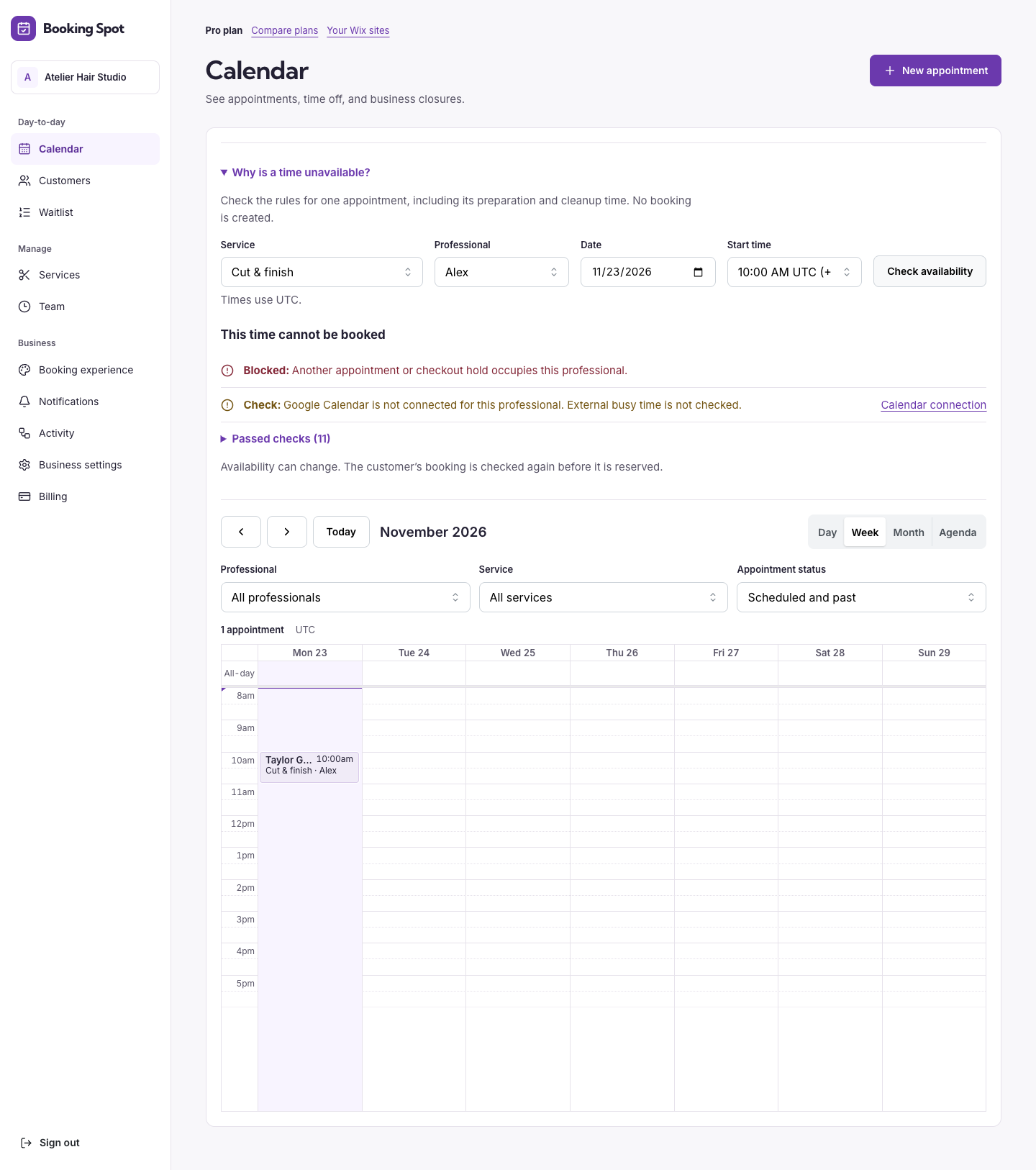
The checker explains an occupied professional and distinguishes that blocker from an unconnected Google Calendar.
What is checked
Blocked means a rule prevents this booking. Check is a warning: for example, a disconnected Google Calendar does not block bookings by itself, but its busy time is not considered. A connected calendar that cannot be checked blocks new bookings for that professional until access is restored.
The tool does not show Google event titles, descriptions or attendee details. Staff can inspect only their linked professionals; Owners and Managers can inspect the whole team. Time options include the UTC offset so repeated daylight-saving times can be distinguished.
Availability can change after this check. The normal booking flow checks again before reserving a time. See availability and shared resources, booking limits and Google Calendar setup.